 Jev AI
Your next visual, with Jev AI
AI Image Generator for the picture you have in mind
Bring a campaign setting, article cover, or unfinished concept to the AI Image Generator on Jev AI. Describe the picture and choose its framing. Add a reference when words need support, then follow the request through processing and review. Download an approved creation or use it to guide another idea.
Give your brief a canvas with an AI Image Generator
The AI Image Generator on Jev AI connects a written brief to a visible result, with controls for the choices that shape each request.
A visual brief answers a few concrete questions: what is the subject, where does it belong, and what should someone notice first? An AI Image Generator uses that description to compose a picture. Evaluate the output as an interpretation of your brief.
There are two useful starting points in Jev AI. Describe a scene from scratch, or supply an approved image alongside the text. In either case, the AI Image Generator reads your request through the selected model's supported inputs. Its public controls show the available parameters and estimated credit cost, helping you decide on the canvas before spending credits on a new attempt.
Think of image generation from text as a way to make creative decisions visible. An AI Image Generator cannot determine whether the result fits your article, product, or audience. Inspect it yourself, especially when accurate objects, believable anatomy, or readable lettering are important to the finished work.
Prepare, configure, and create with the AI Image Generator
Prepare your request through three checkpoints in Jev AI. The AI Image Generator keeps creative choices beside the submission controls.
Decide what the viewer should notice
Put the main subject first, then describe its surroundings and the light. Tell the AI Image Generator which details matter most. Avoid competing camera directions or several unrelated styles in the same brief; a clear priority is easier to judge in the result.
Match the canvas to its destination
Choose a square, portrait, or landscape composition to suit its destination. Choose from the model's available settings and check the displayed estimate. If you need visual guidance, open the reference picker and select approved files. The AI Image Generator includes your selected references, so check that list before sending rather than assuming every uploaded picture will be used.
Send once and check the request
Sign in to Jev AI when you are ready to submit. The AI Image Generator adds the request to your account's history while processing continues. Wait for its status and output review instead of submitting duplicates because an image has not appeared yet. Once a result is available, inspect it, download it, or decide which detail your next brief should change.
Describe a place the AI Image Generator can interpret
Materials, viewpoint, and atmosphere turn a broad subject into a workable scene. Give the AI Image Generator enough direction to make those choices together.
Our coastal example begins with an ivory observatory above a turquoise sea. Curved glass defines the outline, an orange entrance draws the eye, and dawn light connects the interior to the sea. For a similar brief in Jev AI, name those relationships instead of listing unrelated adjectives. The AI Image Generator has a clearer task when each detail supports the same composition.
Compare the image against the brief before rewriting it. Is the entrance visible? Does the cliff feel substantial? Is the building large enough for a reader to recognize on a small cover? Use the AI Image Generator again with a focused adjustment to framing or light. Add exact publication text and brand artwork separately when precision matters; generated lettering still needs careful checking.
 Written brief
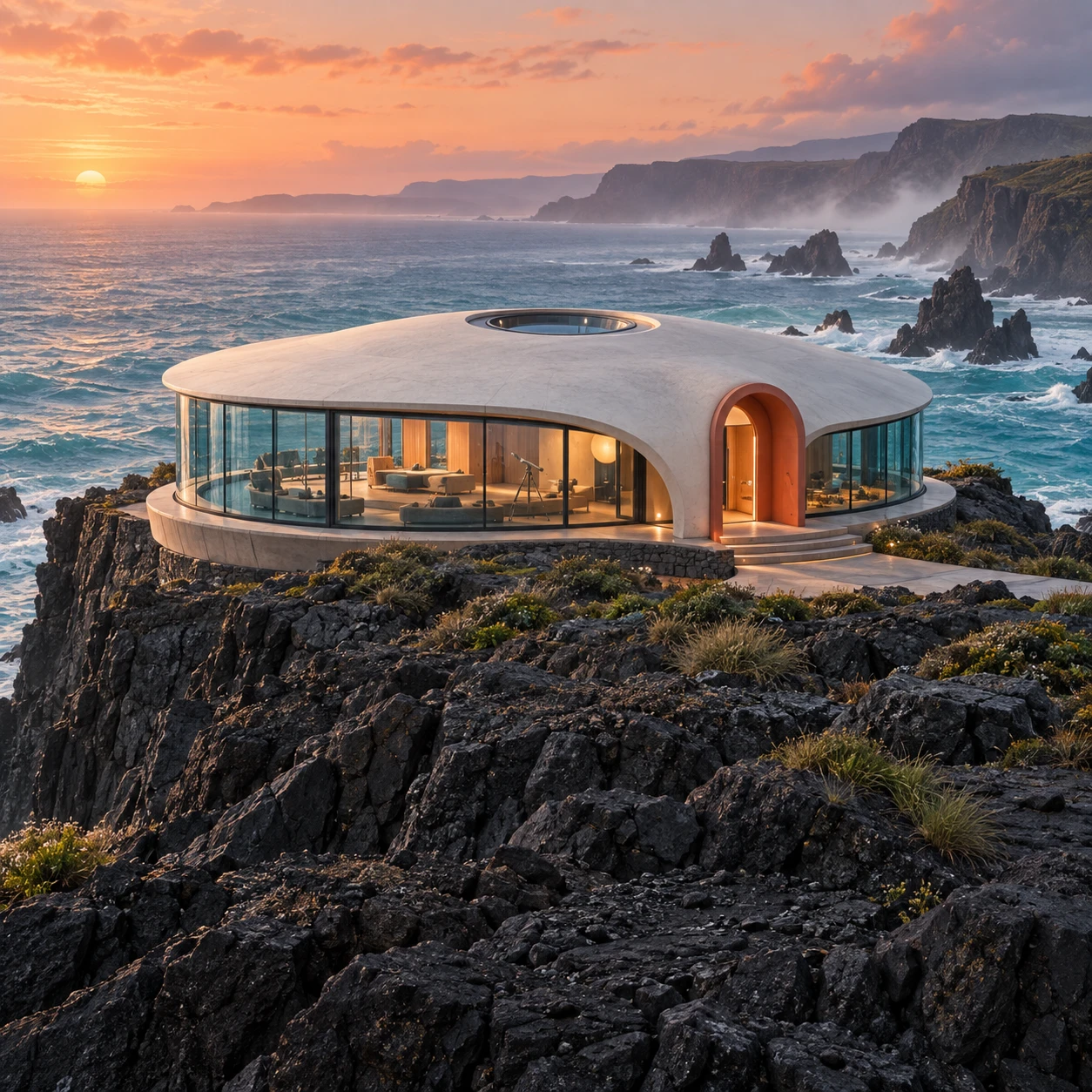 Visual concept
Give the AI Image Generator a visual starting point
A reference can carry the shape or setting into your next brief. Tell the AI Image Generator which parts should remain recognizable and which should become something new.
The greenhouse example explores a specific change: the observatory keeps its cliffside location and orange entrance, while a transparent roof reveals plants inside. In Jev AI, pair an approved reference with a specific transformation. An AI Image Generator can use the picture as context, although it may alter details you intended to preserve.
Check your selection in the reference picker: library uploads are separate from files attached to a request. Only select images you are entitled to use, and wait for uploaded material to pass review. The AI Image Generator follows the chosen model's file and reference limits. Review the new output for unintended changes instead of treating a reference as a guarantee of exact reproduction.
Starting image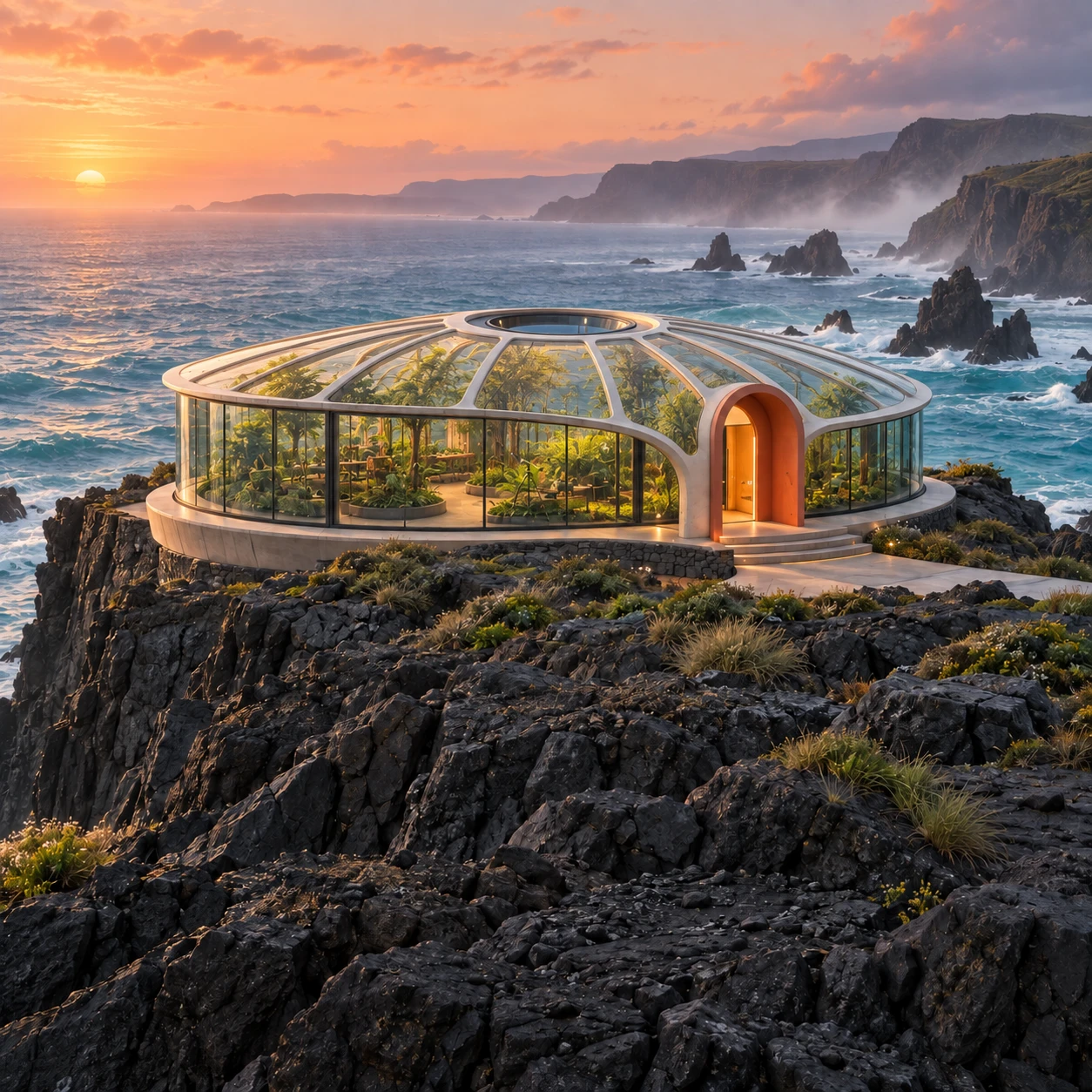 Reimagined space
Apply one visual direction across different briefs
An AI Image Generator can help explore related ideas for different placements. Start each request with the job that particular image needs to do.
The three coastal examples share warm ivory, ocean blue, and coral orange, but serve different purposes. The observatory suggests an editorial cover about future living. The lantern puts material, silhouette, and illumination at the center of a product scene. The greenhouse proposes an environmental design direction. Use an AI Image Generator to explore these relationships before selecting pictures for a presentation, article, or campaign.
When preparing a brief in Jev AI, consider its final size and surrounding content. A small thumbnail needs a clear subject; a larger slide can support architectural detail. The AI Image Generator supplies a starting image, while your review establishes whether it belongs in the project. Present imagined products and places as concepts, not documentary photographs.
Cover idea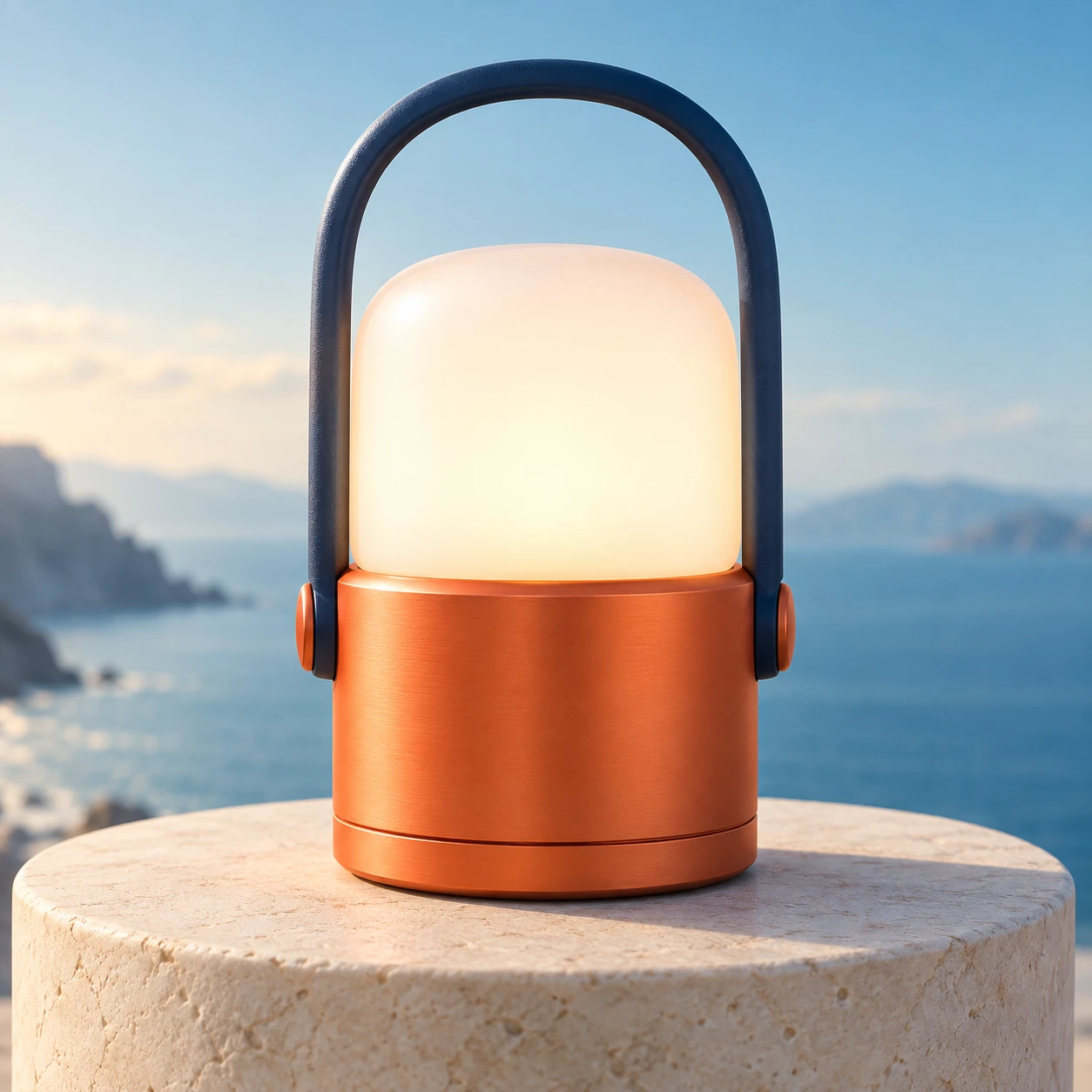 Product sceneDesign study
Return to your AI Image Generator history on Jev AI
The AI Image Generator history separates pending requests from approved results that are ready to use.
Open a history item to examine its available result, then download the image or select it as a reference for another request. The AI Image Generator lets an earlier creation inform a later brief, giving the next attempt a useful starting point.
Public visitors can explore the workspace and compose a prompt before signing in. Uploads, generation, and personal history require authentication. The AI Image Generator does not show a usable output merely because submission succeeded: processing and review must finish first. If an item is pending or has failed, read its status before deciding what to do next. Availability also determines whether an older result can be downloaded or reused.
Plan your next AI Image Generator request
These answers cover the practical choices around the AI Image Generator on Jev AI, from your first text brief to working with a previous result.