 Jev AI
Put your next scene in motion with Jev AI
AI Video Generator for scenes that move your story
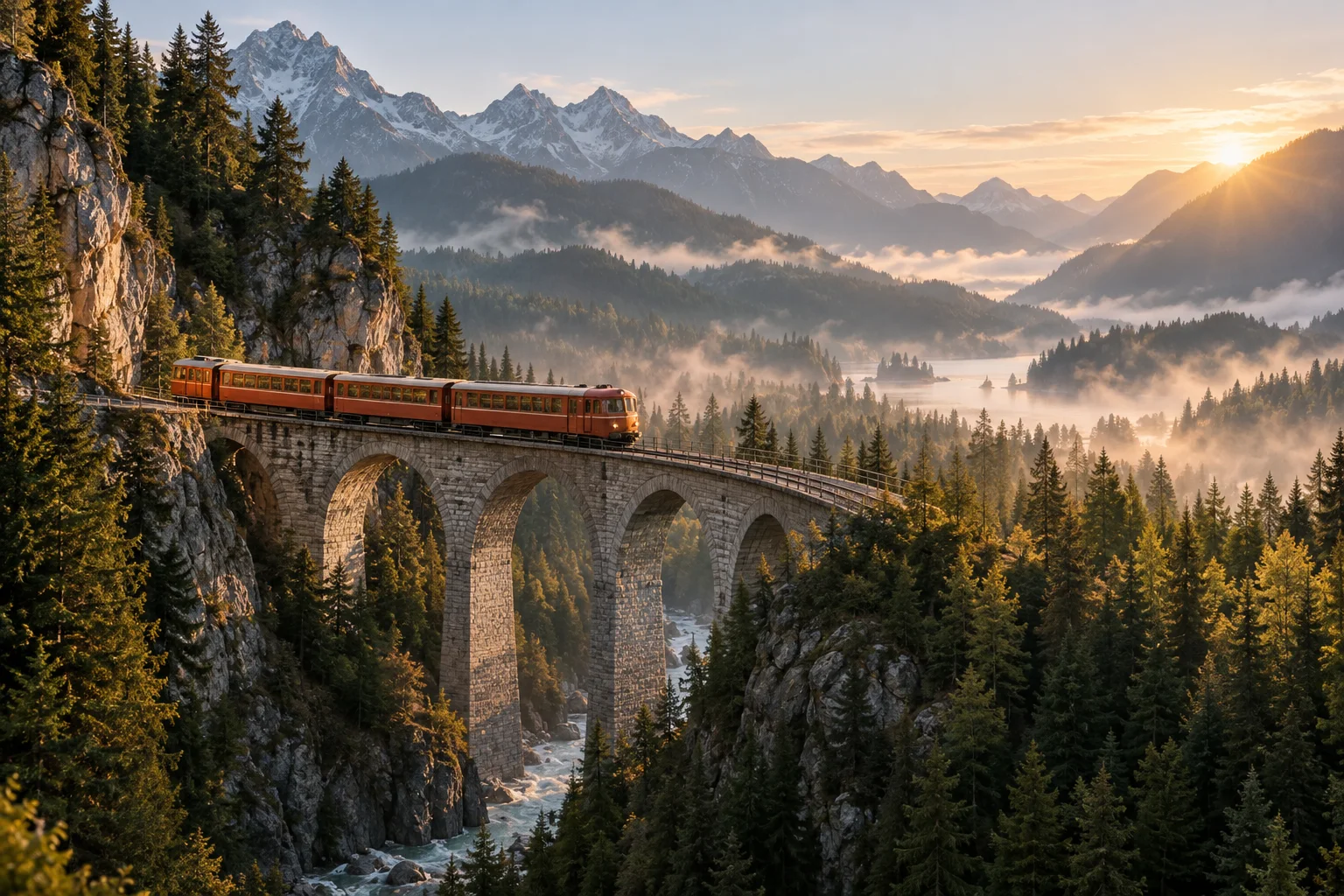
A train crossing a misty valley. Steam rising from a favorite cup. A paper character taking its first step. Use the AI Video Generator on Jev AI to turn a written idea or reference image into a short clip. Shape the motion, choose your settings, and bring your next scene into view.
One AI Video Generator, different ways to begin
Start with the part of the scene you already know: a description, an opening image, or two moments you want to connect.
Text to video gives an imagined scene its first visible form. Describe the subject, what happens, and how the camera observes it. Image to video starts with an existing picture and adds a direction for movement. When the selected model supports start and end frames, you can also suggest where a shot begins and where it should arrive.
The AI Video Generator keeps those choices alongside the model controls and credit estimate. Explore the public workspace before signing in, then use your account to upload references, generate clips, and revisit your work. Jev AI also connects your image and video workflows: an eligible picture from your image history can become a reference for a new video. That makes it easier to develop a visual idea across both tools.
Give the AI Video Generator a shot to follow
A useful video prompt describes change over time. Choose one main action, then give the camera a clear relationship to it.
For the mountain scene, try this brief: an orange passenger train crosses a stone viaduct through a misty valley at sunrise; the camera tracks gently alongside it, keeping the train visible as distant mountains shift behind it. The subject, movement, setting, and light all contribute to one readable shot. In Jev AI, start with that complete thought before adding smaller details.
Use the AI Video Generator to explore pacing as well as appearance. A slow tracking move suggests an unhurried journey; a stationary wide view puts more emphasis on the landscape. Keep the action manageable within your chosen duration. If a clip feels crowded, simplify the scene or remove a competing camera instruction. Review the beginning, middle, and end before deciding which part of the prompt needs another pass.
Set a visual direction with image references
Bring a product photograph, an illustration, or an earlier creation to the AI Video Generator when you already have a look worth developing.
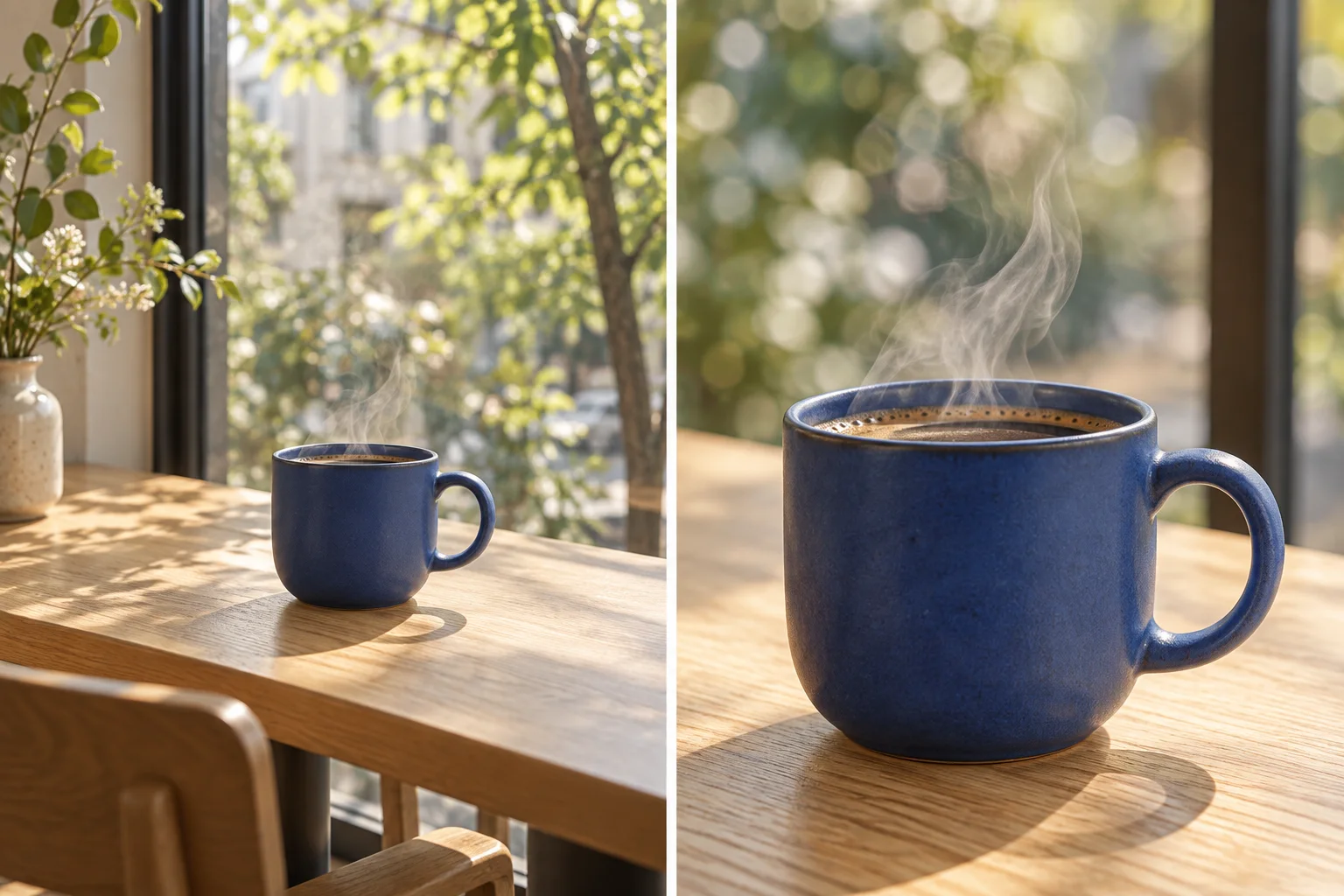
The coffee example pairs an opening view of a blue ceramic cup with a closer view of its rim and rising steam. For a model with frame controls, select the opening picture first, then add an optional ending picture. Describe the movement between them: a gentle push toward the cup while the steam drifts upward. Jev AI keeps the start and end selections distinct so you can check their order before generating.
Choose pictures with compatible subjects, lighting, and proportions. The AI Video Generator still interprets the transition, so two reference frames do not guarantee that every surface or shape will stay identical. Inspect handles, edges, and background objects in the resulting clip. If your selected model offers a single reference instead, use that image to establish the scene and describe the intended motion in your prompt.
Make room for motion in your next project
Use the AI Video Generator for a focused visual moment: a product reveal, a social opening, or a story idea that is easier to show than explain.
For a product concept, begin with a clear silhouette and one controlled movement. For a social post, make the main action recognizable immediately and choose a suitable portrait or square format when available. For a story pitch, try an establishing shot that communicates place and mood. Jev AI gives each brief its own prompt and settings, so you can explore these directions separately.
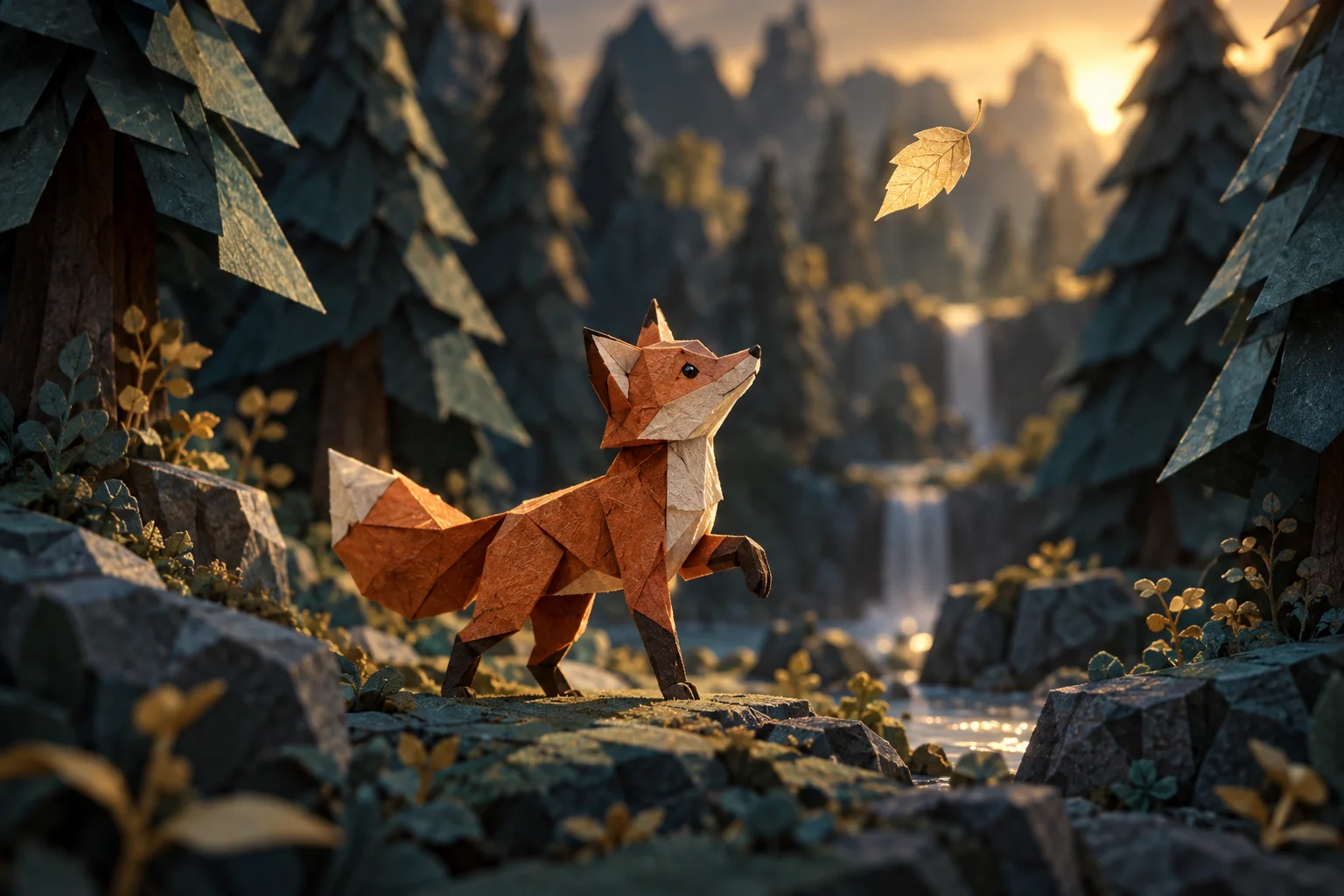
Our paper fox suggests another approach: a small character follows a falling leaf through a miniature forest. A short animation can establish curiosity without needing a complicated plot. Ask the AI Video Generator for one step, one glance, or one camera move before attempting a longer sequence. Download the clips you want to develop, then arrange them with titles, cuts, or other footage in your preferred editor. A focused shot leaves more room for thoughtful finishing.
From a first idea to a clip you can review
Prepare your AI Video Generator request in three steps. Keep the creative brief and the practical settings working toward the same result.
Choose the subject and its movement
Write a prompt with a clear subject, action, setting, and camera direction. Add approved references if the shot needs them. Check the selected model's image controls: a single reference and a pair of start and end frames serve different purposes. Uploading a picture puts it in your library; selecting it attaches it to this request.
Set the format and check the estimate
Choose the available resolution, aspect ratio, and video length. A brief movement may need less time than a gradual reveal. The AI Video Generator updates the credit estimate as you change supported settings. Check the total against your current balance before submitting, including when you plan to use the daily free allowance.
Generate, play, and refine
Sign in to Jev AI and send your request. Follow its status in your private history while processing continues. When the video becomes available, play the whole clip and download it if it fits your brief. Reuse the prompt and compatible settings to try a specific adjustment, such as slower motion or a simpler background.
Keep the next attempt connected to the last
Your AI Video Generator history brings previous requests and available videos back into view when you return to Jev AI.
Look beyond the opening frame when reviewing a result. Does the subject remain recognizable? Does the camera movement support the action? Does the final moment give you a useful place to cut? For the coffee shot, watch the handle and rim throughout the move; for the train, check its direction and how it follows the bridge.
Use Reuse prompt to restore a previous brief and its compatible settings, then change one detail you can evaluate. Available references can also be restored; review the selection if an older file or model is no longer accessible. Reusing a request prepares another attempt in the AI Video Generator and waits for you to submit it. You can compare successive ideas without rewriting every part of the brief.
AI Video Generator questions, answered
Practical details for planning a clip, using references, and making the most of your time in Jev AI.