 Jev AI
Flux Schnell on Jev AI
Flux Schnell AI Image Generator for ideas that start with words
Turn a short visual brief into an image with Flux Schnell on Jev AI. Describe the subject, setting and style, choose your canvas, and review the result in one focused workspace. This text-to-image model is a useful starting point when you want to explore an idea before you have a reference photograph.
What is Flux Schnell on Jev AI?
Flux Schnell is a text-to-image model available through Jev AI. This page accepts a required text prompt, offers 11 aspect ratios, and generates one PNG image per request. It gives you a direct way to explore compositions without preparing or uploading source images.
Use Flux Schnell when the creative question is still open: what should an article cover look like, which setting communicates an idea, or how should a fictional object be framed? Put the decision you are trying to make into the brief. For a coastal architecture concept, for example, decide whether the building or the surrounding sea should dominate before adding decorative details.
The controls stay focused on the prompt and canvas shape. A square composition can suit a feed concept; a wide landscape can leave room for a presentation title; a portrait canvas can support a poster layout. The aspect ratio is part of the request, so choose it before judging the composition. Changing it later means generating another image.
Flux Schnell does not accept reference images in this Jev AI workspace. If your starting point is an existing product photograph or a character whose appearance matters, use a model page with reference inputs, such as Flux Kontext Pro or Flux 2 Flex. Keep Flux Schnell for prompt-led exploration, then assess whether the resulting direction is worth developing further.
| Parameter | Specification |
|---|---|
| Input | Required text prompt; no image input |
| Prompt length | 1–3,000 characters |
| Aspect ratio | 1:1, 16:9, 21:9, 3:2, 2:3, 4:5, 5:4, 3:4, 4:3, 9:16, 9:21; default 1:1 |
| Output | 1 PNG image per request |
Plan useful images with Flux Schnell
These creative briefs show how to give a text-to-image request a clear purpose. The illustrations are planning concepts, not measured Flux Schnell outputs.
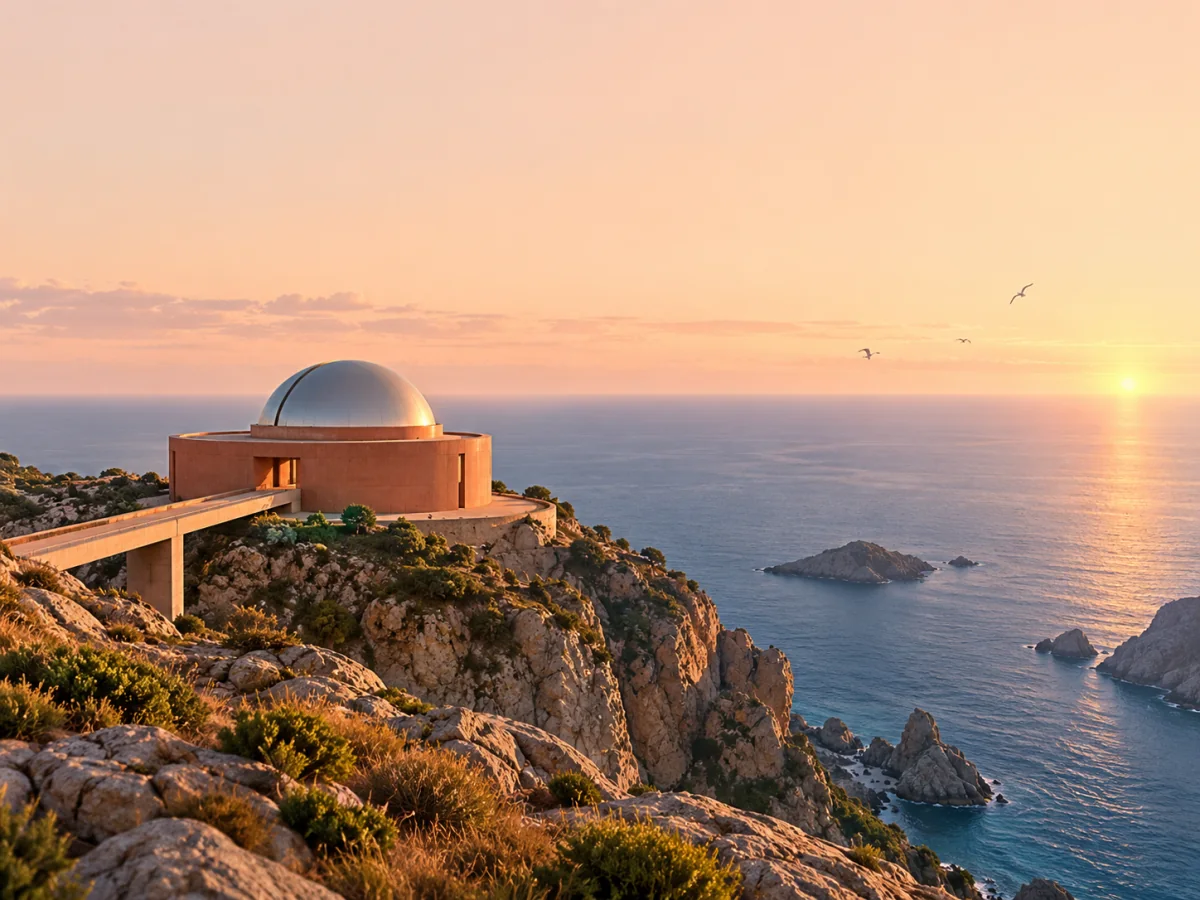
Explore a setting for an editorial cover
An editorial image needs a subject that connects to the story and a composition that remains readable at small sizes. With Flux Schnell, describe one main setting and the role it should play: a quiet research station overlooking an open sea, for example, can suggest observation or discovery. Specify the position of the building, the horizon height and the amount of open sky. If a headline will be added later, ask for an uncluttered area rather than filling every corner with objects. Review the silhouette and focal point before experimenting with another color treatment.
Give a fictional product a clear visual brief
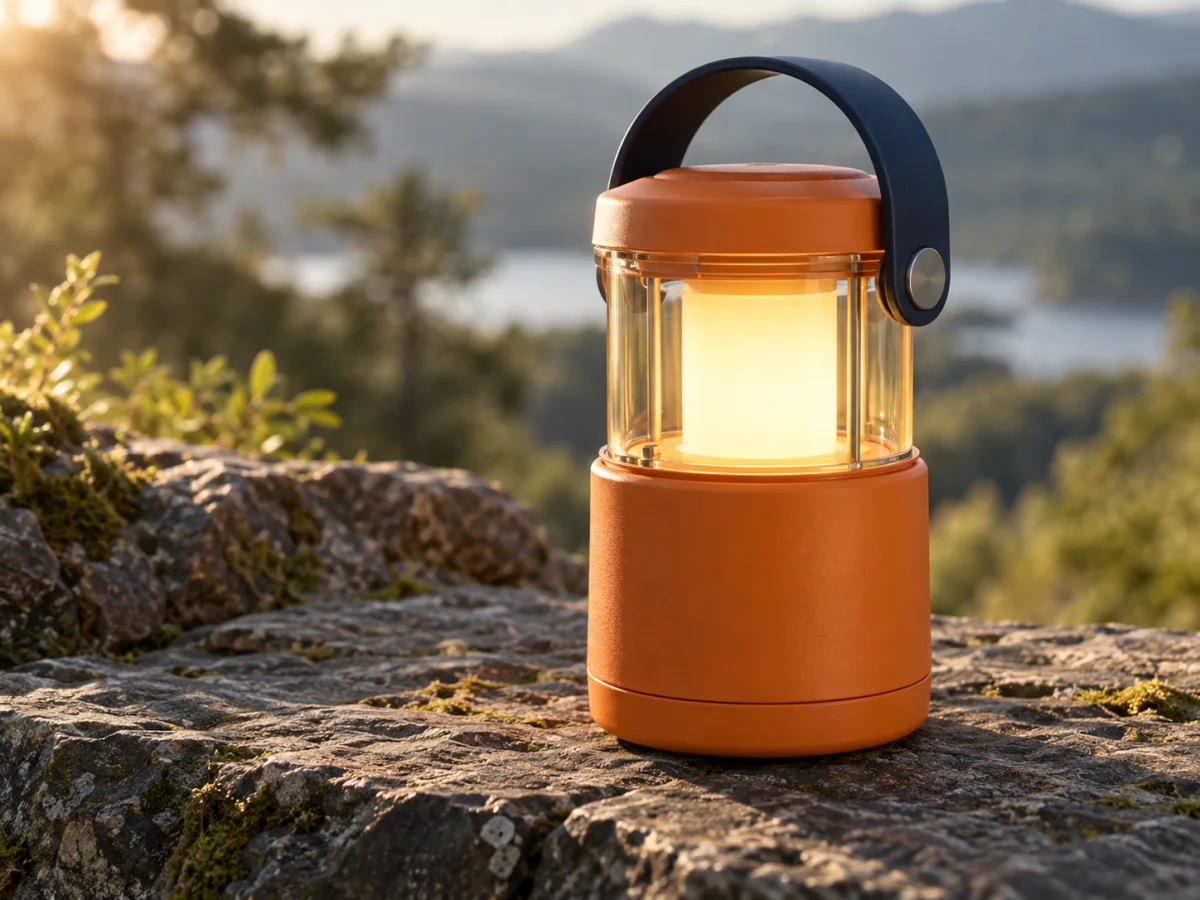
Flux Schnell can be used to explore an imagined object before there is a source photo to upload. Describe a portable orange lantern with a navy handle, a warm light and a weathered stone surface beneath it. State the materials and viewing angle so the request communicates a specific design direction. Treat the output as a concept to discuss, not a manufacturing drawing. Check the handle, seams, base and light source for plausible relationships. This makes the image useful for early moodboards, presentation sketches and visual conversations about a new product idea.
Compare one creative choice at a time
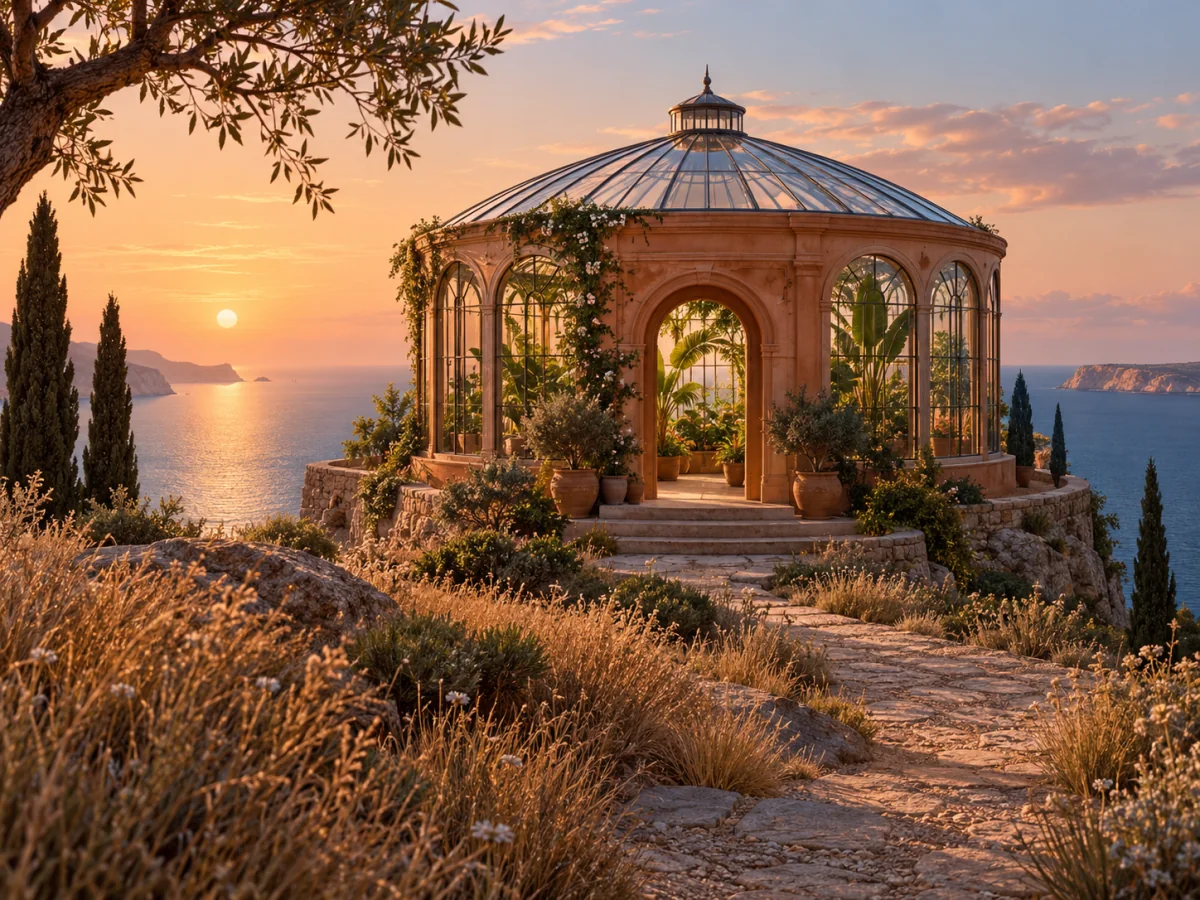
A controlled prompt experiment is easier to evaluate than several unrelated requests. Keep the subject and framing stable while changing one element, such as an observatory becoming a greenhouse or morning light becoming overcast light. Flux Schnell still creates a fresh image on every request; it does not preserve an exact previous frame. Save the versions that communicate the idea clearly and note what changed in the wording. When visual continuity becomes more important than open exploration, move to a reference-capable model and provide the approved image as guidance.
How to use Flux Schnell
Prepare a clear brief, choose the supported settings and review your image result on Jev AI.
Write the core idea first
Begin with the main subject, its setting and the intended use. A useful Flux Schnell brief might read: an ivory coastal observatory with one orange entrance, seen from a low viewpoint at dawn, with open sky above for an editorial headline. Add only the details that help explain this particular picture.
Choose the shape of the picture
Select one of the available aspect ratios. The default is 1:1; landscape and portrait choices include 16:9 and 9:16. Check that the requested layout makes sense in the selected shape. Flux Schnell has no separate resolution or reference-image control on this page.
Review credits and generate
Sign in to Jev AI and review the estimate beside the generation control. Available free credits can contribute when your balance covers the request. Submit once and follow the processing status in history. A busy provider can affect completion time, so the page does not promise a fixed number of seconds.
Keep the strongest direction
Inspect the completed image at a useful viewing size. Check the subject, framing, object relationships and any requested lettering. Download the version you want to keep. For a revision, change the brief deliberately and generate again; a new request produces a new image and has its own credit estimate.
Flux Schnell questions and answers
Practical answers about Flux Schnell inputs, creative choices and the controls available in this Jev AI workspace.