 Jev AI
Wan 3.0 on Jev AI
Wan 3.0 AI Video Generator for text and frame-guided motion
Plan a moving scene with Wan 3.0 on Jev AI. Begin with a text prompt or add a start image and optional end image, then choose the resolution, aspect ratio and length. Use the workspace to explore a short visual story, animate a source image or guide a shot toward a planned ending.
What can Wan 3.0 do in this workspace?
Wan 3.0 is a video generation model with text-to-video and image-to-video workflows on Jev AI. It supports whole-second durations from 2 to 30 seconds, 480p, 720p or 1080p resolution, and one MP4 output per request. An optional end image requires a start image.
The choice of input changes how you prepare the brief. With text alone, describe the scene as well as the action. With a start image, let that picture establish the visible subject and explain the movement in the prompt. With start and end images, choose frames that describe a plausible progression, then explain what should happen between them.
Wan 3.0 gives you a broader duration range than a brief loop, but time still needs to serve the action. A slow reveal may benefit from more seconds; a small gesture may not. Plan the opening, the main movement and the ending before selecting the length. Adding duration without a clear progression can make the result harder to evaluate rather than more useful.
Jev AI keeps the model fixed on this page and exposes the supported choices beside the prompt. Use the current estimate to compare settings before generating. The first version is a motion concept to review: watch the subject, background, camera path and ending together, then decide which part of the brief needs a focused revision.
| Parameter | Specification |
|---|---|
| Input | Required text prompt; optional start and end images |
| Prompt length | 1–5,000 characters |
| Frame images | Up to one start and one end image; PNG, JPEG or WebP; 10 MiB per image; an end frame requires a start frame |
| Resolution | 480p, 720p, 1080p; default 480p |
| Aspect ratio | Auto, 16:9, 4:3, 1:1, 3:4, 9:16; default Auto |
| Video length | 2–30 seconds, whole-second steps; default 5 seconds |
| Output | 1 MP4 video per request |
Give a Wan 3.0 video a clear beginning and ending
A well-defined motion brief connects the input frame, the action and the intended finish. These illustrations explain scene ideas and are not Wan 3.0 benchmark videos.
Match the action to the selected duration
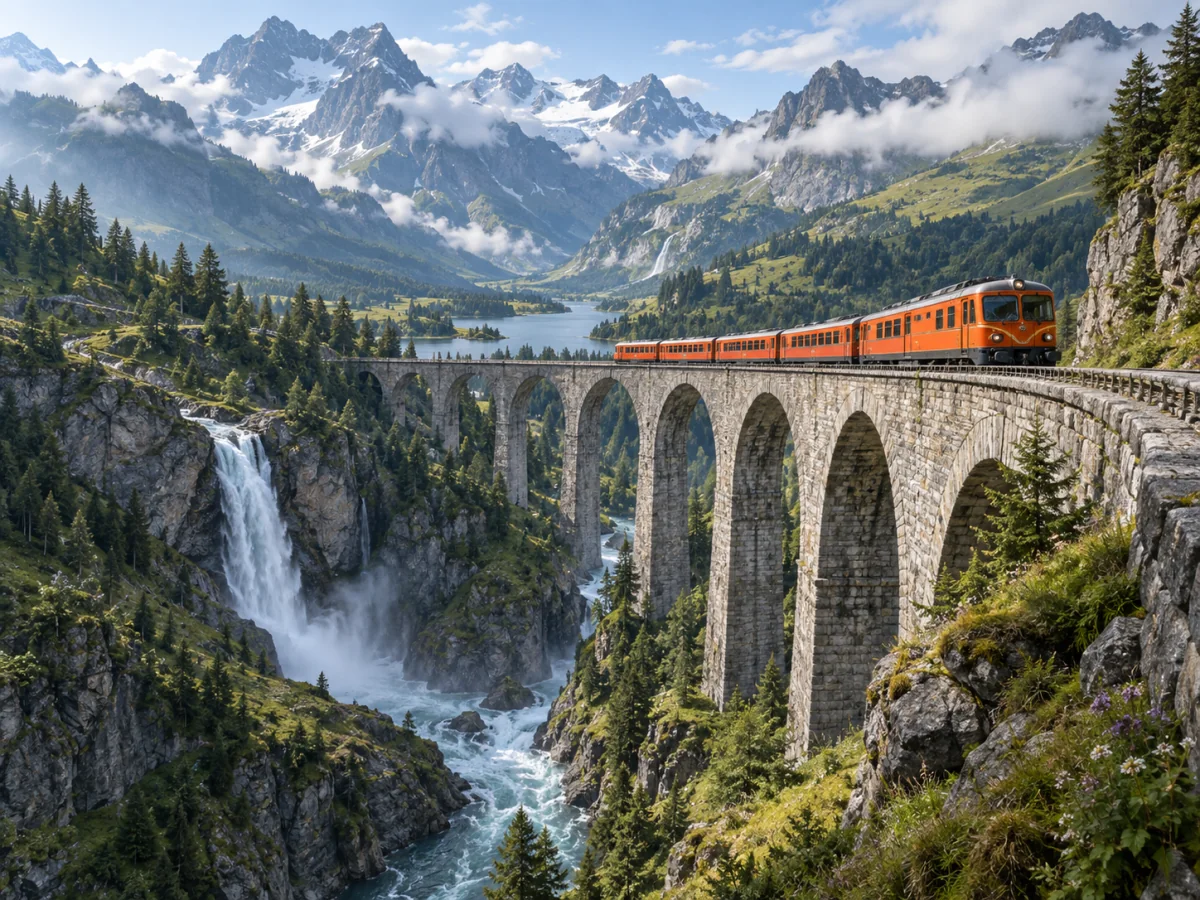
An orange train crossing a mountain viaduct is a simple way to think about timing. Define where the train starts, how it moves across the frame and where it should be when the shot ends. Ask Wan 3.0 for a wide stationary camera if the crossing itself is the focus. Choose a duration that gives the subject room to move without adding unrelated events. Review whether the action unfolds at a useful pace and whether the scene stays coherent throughout. For the next attempt, adjust timing or camera direction separately so the comparison remains meaningful.
Use compatible start and end images
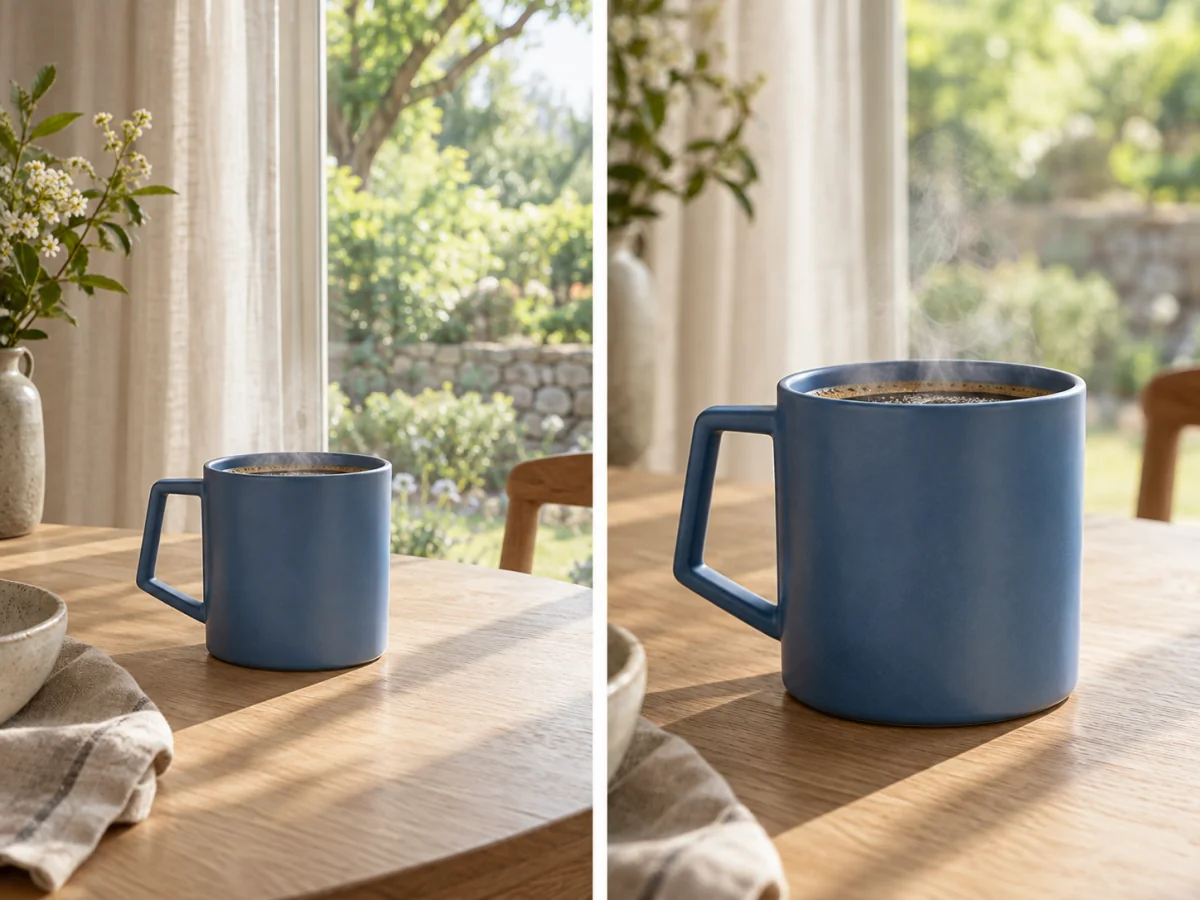
A wide view and a closer view of the same blue cup can describe a gradual push-in. For Wan 3.0, prepare them as separate start and end images and keep the object, lighting and surrounding surface compatible. Explain the intended camera movement in the prompt, including whether the cup stays still and whether steam should move. An end frame can guide the requested destination, but it is not a promise of an exact mechanical transition. Watch the middle of the clip for object changes, sudden reframing or motion that does not fit the two inputs.
Animate one story beat from an illustration
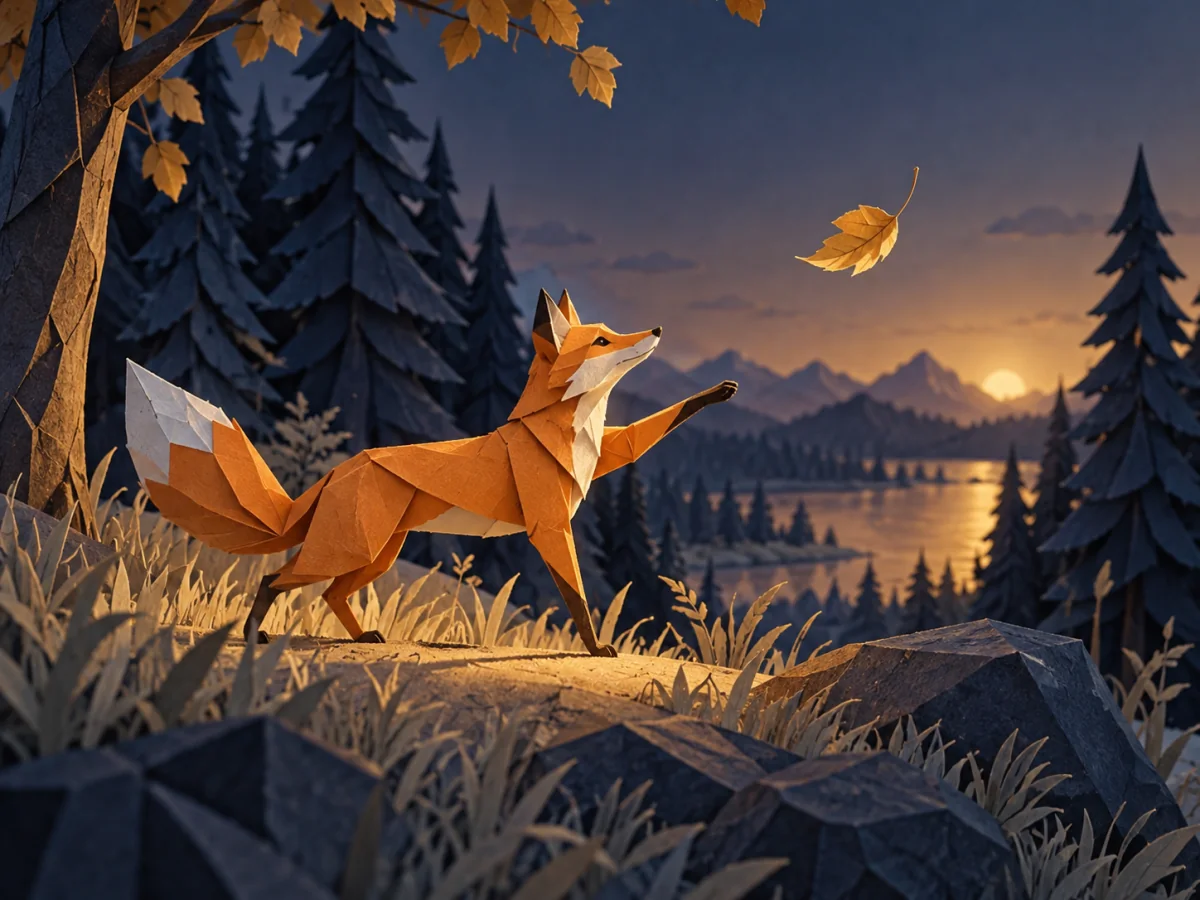
A paper fox reaching toward a drifting leaf gives an illustrated scene a readable action. Use a start frame when the character design is already decided, and describe the movement without replacing the artwork style. If you add an end frame, keep it consistent with the same scene and character. Wan 3.0 can then be directed toward a defined final pose or composition. Review the full motion for changes in shape or identity, especially when limbs overlap or the camera moves. A single clear beat is a useful building block for a larger edited sequence.
How to use Wan 3.0
Prepare a clear brief, choose the supported settings and review your video result on Jev AI.
Outline the shot
Write the subject, opening situation, movement and camera behavior. Include the ending when it matters. Wan 3.0 accepts a required prompt of up to 5,000 characters on Jev AI. Describe a coherent shot instead of relying only on style words or asking for several unrelated stories at once.
Add frames when they improve direction
Use text alone or attach one start image. Add an end image only after choosing a start image. PNG, JPEG and WebP are supported, with each frame up to 10 MiB and a 20 MiB combined limit. Check that the pair shows compatible subjects and composition.
Choose the output settings
Select a duration from 2 to 30 seconds, a resolution of 480p, 720p or 1080p, and Auto or a listed aspect ratio. The defaults are 5 seconds, 480p and Auto. For a known layout, choose an explicit ratio and prepare source frames that suit the intended composition.
Generate and inspect the movement
Review the estimate, sign in and submit on Jev AI. Follow the processing status in history, then watch the available MP4 from beginning to end. Check the action, camera path, object continuity and final framing. Download the useful version before refining the brief for another request.
Wan 3.0 questions and answers
Practical answers about Wan 3.0 inputs, creative choices and the controls available in this Jev AI workspace.