 Jev AI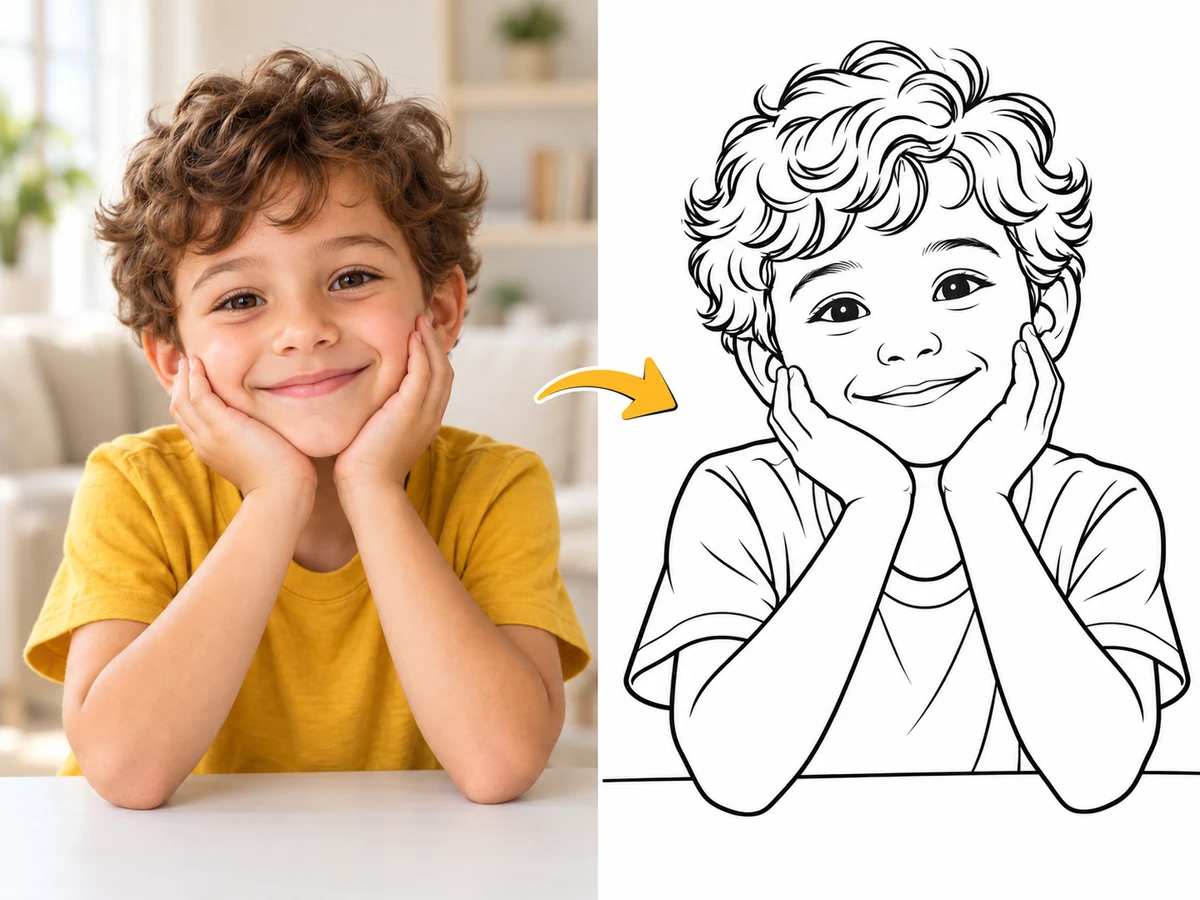
AI Tools for practical image and video projects
Turn a source picture into something you can use for your next creative task. AI Tools on Jev AI bring focused image and video workflows into one directory, from a photo-inspired coloring page to a short video guided by visual annotations. Choose the outcome first, then prepare the material that helps communicate it. You can browse before signing in and use available free credits toward a generation when your balance covers the displayed estimate.
Choose AI Tools for the outcome you need
A useful creative workflow starts with a concrete task. Find the right workspace by thinking about what should change in your source material and how you intend to use the result.
AI Tools for images focus on a still result you can inspect, download, and use in a larger project. Photo to Coloring Page, for example, aims to simplify a picture into clean black-and-white outlines. Your source image establishes the subject, while the tool supplies instructions for the transformation. That makes reference selection especially important: a clear silhouette and an uncluttered scene communicate more than a collection of unrelated details crowded into one picture.
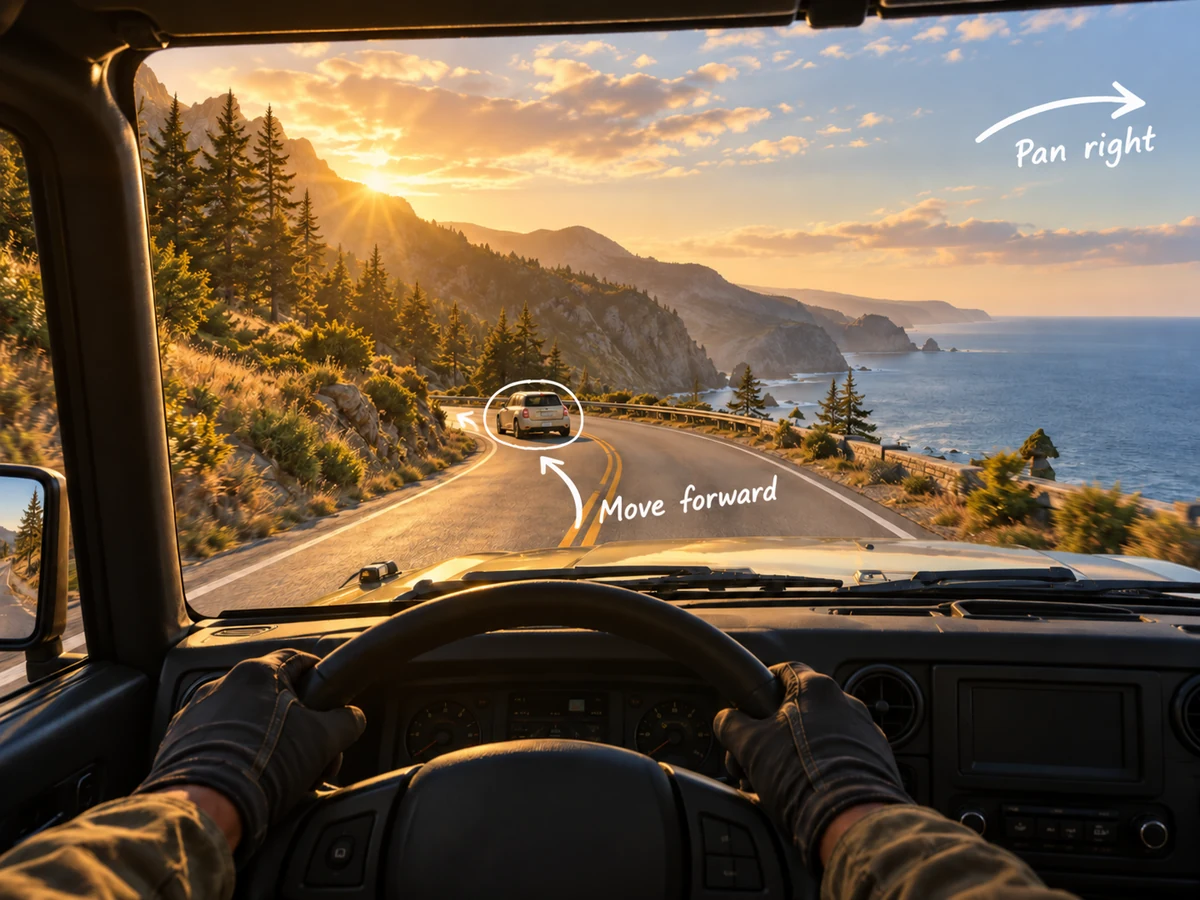
AI Tools for video introduce movement into the task. Draw to Video starts with a reference image that includes your visual motion instructions. An arrow can indicate a direction, a curved path can suggest a trajectory, and a circle can identify the subject you want to animate. Prepare those annotations before uploading the picture. The tool interprets the combined scene and guidance, so the marks should be readable and clearly associated with the intended object.
Use the Image and Video tabs to filter AI Tools, or keep All selected to compare both media types. Each card opens a dedicated workspace with the required inputs and supported settings. For an open-ended prompt, the general image and video generators remain available in the sidebar. Choose this directory when a focused transformation matches your project, and use the broader generators when you need to define the entire creative brief yourself.
AI Tools for two useful creative transformations
See how a source image can support a new activity or a motion idea. These illustrations explain the tasks through creative concepts, rather than presenting tested generation results.
AI Tools for photo-inspired coloring pages
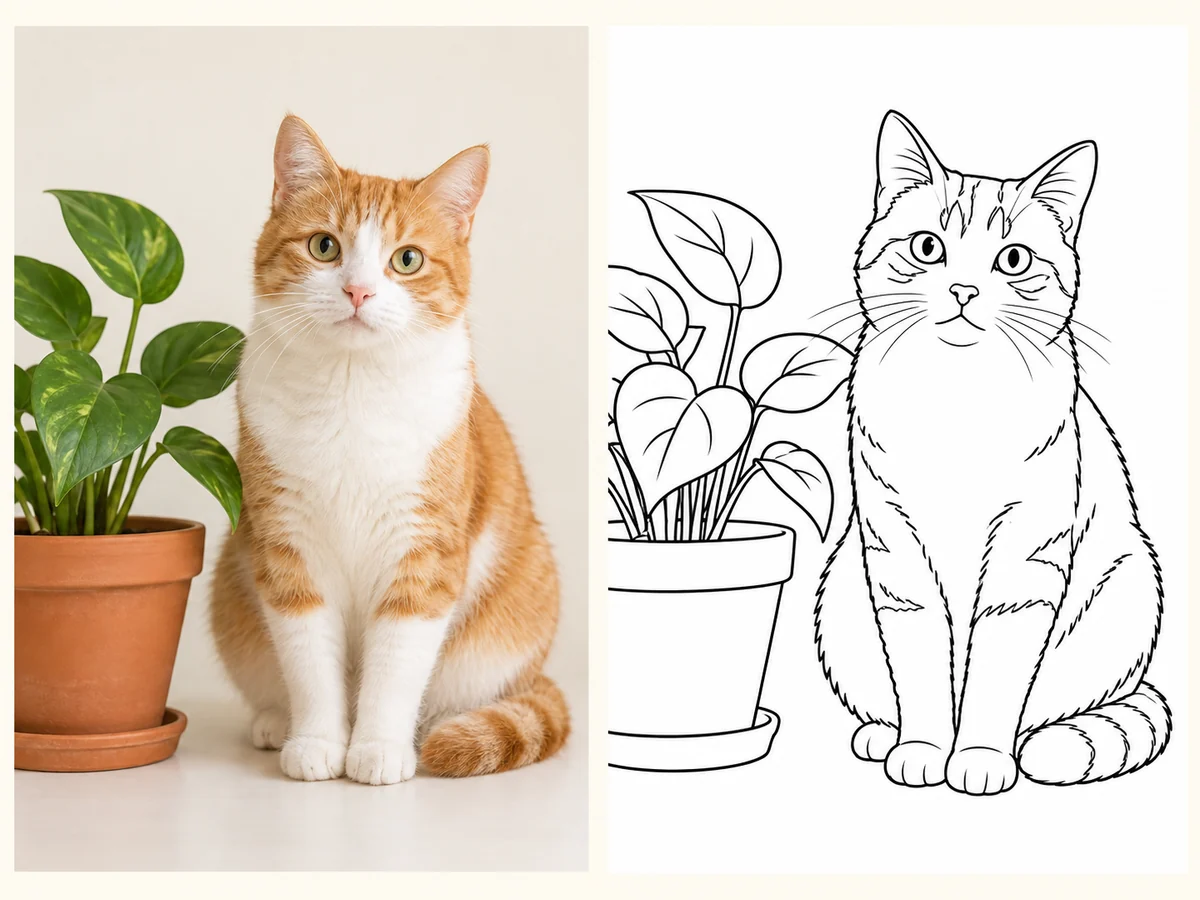
Photo to Coloring Page asks for one reference image and transforms the brief toward bold outlines, minimal shading, and open areas for coloring. A pet portrait, a simple still life, or a recognizable everyday object can make a useful starting subject. Choose a picture with enough separation between the subject and background to keep the main shapes readable. This workflow has no prompt field: upload the image and choose the available aspect ratio, which defaults to square. When comparing AI Tools for a printable activity, judge the output by its line clarity and the size of its enclosed spaces. Inspect eyes, paws, leaves, and other small details before printing. The illustration pairs a cat photograph concept with a line-art interpretation to show the intended direction; your own result will depend on your source and generation.
AI Tools for turning motion sketches into video
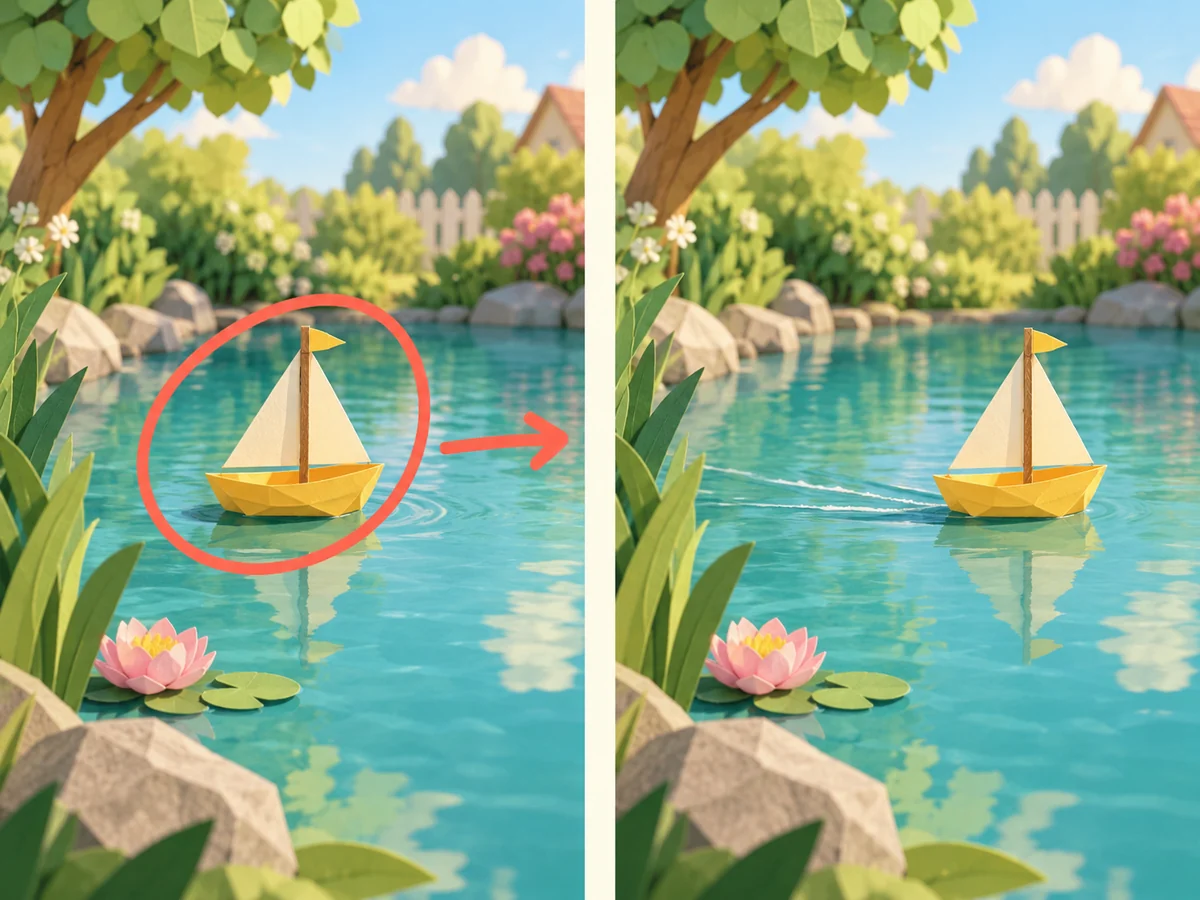
Draw to Video uses an annotated image as its main input. Draw an arrow from the intended starting direction toward the destination, or sketch a curved path when the route matters. Use a circle or box to identify a subject; those marks alone do not describe movement. If you add instructional text, place it near the object it refers to and keep the message short. These AI Tools interpret guidance within a scene, so avoid lines that could be mistaken for existing artwork. The workflow aims to animate the intended subject while leaving the guidance marks out of the finished video. Select an aspect ratio or keep Auto, then inspect the full result for motion, shape consistency, and unwanted marks. The boat illustration shows a motion plan beside a clean scene concept, not consecutive frames from a generated clip.
How to use AI Tools from source to result
Prepare one suitable input, review the choices in its workspace, and evaluate the output against the task you set out to complete.
Find AI Tools for your project format
Choose Image for a still transformation or Video for a motion task. Open the relevant card and read its requirements before preparing files. Check any configured example to understand the intended outcome. Think about the final destination as well: a coloring activity needs readable outlines, while a short video needs movement that can be understood within the clip. Matching the tool to the task is more useful than choosing a style and hoping it fits afterward.
Upload a clear source and review the controls
The current reference-led AI Tools require one image, with a 10 MB upload limit. Select a supported file and check the preview to confirm that you chose the intended source. Photo to Coloring Page and Draw to Video do not require a typed prompt. Their picture panel holds the main input, while the controls below let you set the aspect ratio. Review the credit estimate before submitting, and replace the reference if its crop or annotations need correction.
Generate, inspect, and keep a useful version
Sign in to submit a request and follow its status in the selected tool's history. View the finished image or play the full video before deciding whether it meets your brief. If a coloring page has excessive detail, try a simpler source. If motion is unclear, revise the annotations and test again. AI Tools can interpret a brief differently across attempts, so make a deliberate change and compare the outcome. Download the result you want to keep.
Plan AI Tools around the way you will use the result
Good preparation gives the transformation a clear purpose. Work backward from the activity, audience, or scene you want to create.
For a family activity or classroom worksheet, use AI Tools for a subject that will remain recognizable when reduced to outlines. A single animal, toy, or plant is often easier to color than a busy room. Consider the intended audience when judging small enclosed areas and intricate details. After downloading, preview the image at the size you plan to print. Add any labels, instructions, or page layout in your usual editor so essential text remains under your control.
For a storyboard or creative presentation, use AI Tools for a small motion study. Start with one clearly marked subject and a simple path. Keep unmarked objects visually distinct, and avoid crossing several arrows over one another. If multiple objects need different movements, make each relationship clear in the source. Review whether the resulting shot communicates the intended idea before building more work around it. A readable motion plan is a better starting point than a dense page of competing instructions.
For repeated creative work, keep source selection and review consistent. Revisit the same tool's history on Jev AI to find its available requests without mixing them with a different workflow. Use the previous input as a starting point when appropriate, but check the selected image and settings before another submission. AI Tools for a specific task expose the choices relevant to that task; other model settings follow the tool's configuration. Save useful downloads with names that identify the project and version.
Questions about AI Tools
Check the practical requirements for files, credits, and your workspace before beginning a new task.