 Jev AI
Flux Kontext Pro on Jev AI
Flux Kontext Pro for image creation and reference-guided changes
Start with a picture you want to develop or describe a new one with Flux Kontext Pro on Jev AI. Add one optional reference image and explain the intended change. Choose an aspect ratio, review the credit estimate, and use the result to decide what your next version needs.
What is Flux Kontext Pro on Jev AI?
Flux Kontext Pro is an image model that accepts a text prompt and one optional reference image in this workspace. It offers 11 aspect ratios and returns one PNG image per request. The prompt explains your creative direction; the reference supplies visual context when you need it.
A useful reference-guided request distinguishes the source from the goal. The source might show a building, object or scene you want to retain. The goal might be different weather, a new material or a more suitable setting. Tell Flux Kontext Pro which visible details are important and describe the change in a way you can later check.
This makes the workflow useful for exploring a focused revision without rebuilding the entire idea in words. For a greenhouse concept, for example, an existing architecture image can establish the viewpoint while the prompt describes a transparent roof and planted interior. The image is still generated anew, so compare the full result rather than assuming everything outside the requested change will stay identical.
Flux Kontext Pro can also create from text alone. Use that route when you are not trying to carry visual information from a source image. If your project needs several references at once or a selectable resolution tier, compare Flux 2 Flex or Flux 3 Image in the sidebar. The page keeps the current model fixed and exposes the inputs available for this integration.
| Parameter | Specification |
|---|---|
| Input | Required text prompt; optional reference images |
| Prompt length | 1–3,000 characters |
| Reference images | 0–1 images; PNG, JPEG or WebP; up to 10 MiB per image |
| Aspect ratio | 1:1, 16:9, 21:9, 3:2, 2:3, 4:5, 5:4, 3:4, 4:3, 9:16, 9:21; default 1:1 |
| Output | 1 PNG image per request |
Make the change clear with Flux Kontext Pro
A good edit brief identifies the subject, the requested change and the details worth checking. The images below are illustrative concepts for planning those requests.
Develop an architectural idea from one source
Use a reference image to anchor a concept you can already see. A prompt for Flux Kontext Pro might ask to replace the opaque roof of a coastal observatory with clear glass and add a planted interior, while keeping the circular footprint and ocean viewpoint recognizable. This is more specific than asking the model to improve the building. Review roof geometry, supports, reflections and how the new interior relates to the original scene. The output can help you discuss a design direction, but it remains a visual concept rather than a validated construction plan.

Test a new setting around an object
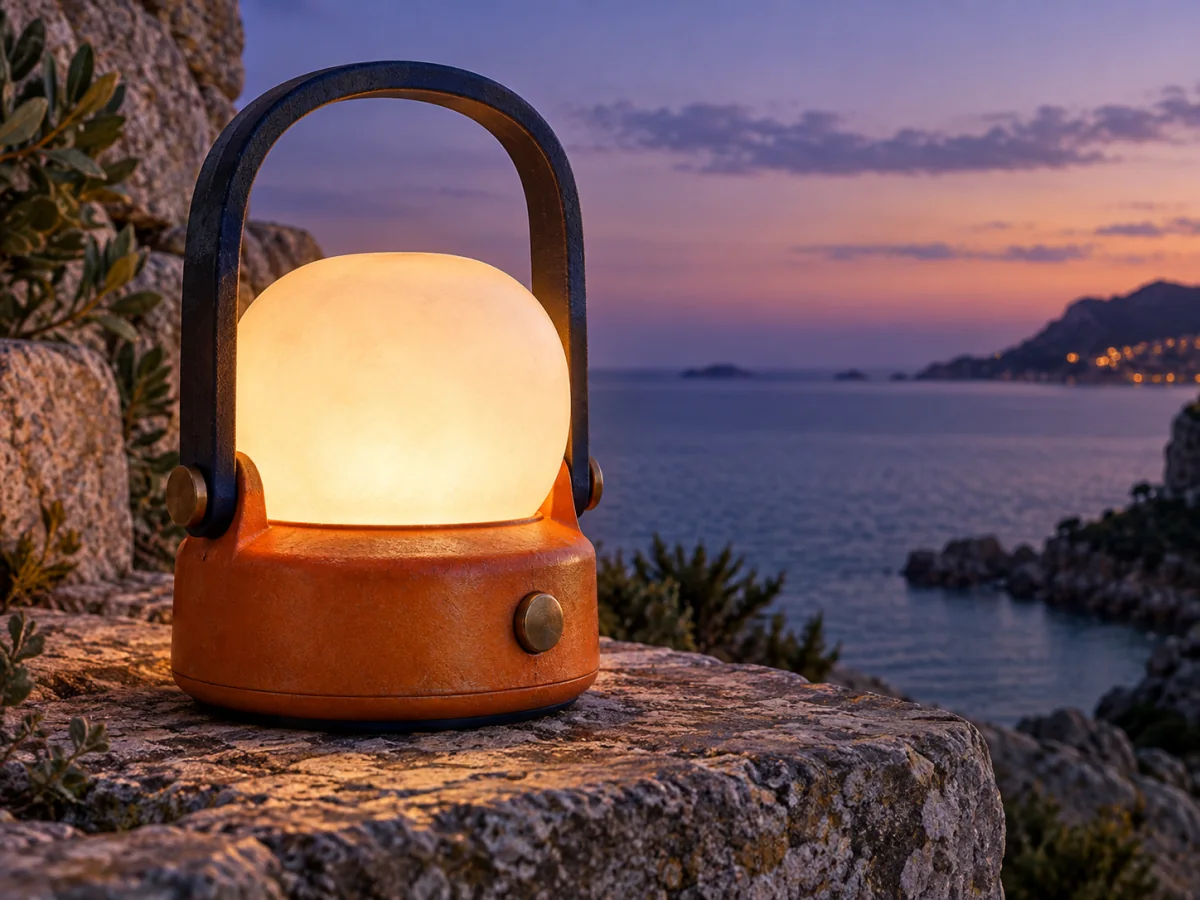
A reference photograph can establish the object while the prompt explores its surroundings. For an outdoor lantern concept, describe a stone ledge, evening light and an uncluttered ocean background. Tell Flux Kontext Pro which details of the lantern matter, including the handle shape, body color and light source. Keep the request focused enough that the result can be judged. Check the object itself after generation, not only the attractive new setting. This workflow is useful for early product-story ideas and moodboards where the environment contributes to the message.
Reconsider framing for a new use
A source image that works in a presentation may need a different composition for a cover. Choose a target aspect ratio and explain where the main subject should sit, what space should remain open and which background elements are useful. Flux Kontext Pro treats this as a new generated picture, not a precise resize operation. Compare the result with the original visual intent. If your only goal is to change file dimensions without generating new content, use a dedicated resize workflow instead of expecting a generative request to preserve every original pixel.

How to use Flux Kontext Pro
Prepare a clear brief, choose the supported settings and review your image result on Jev AI.
Identify the source and the change
Choose one image that clearly shows the subject you want to develop. Write a prompt naming the desired change and the details you want to remain recognizable. For a text-only idea, describe the subject, environment and composition directly. Flux Kontext Pro requires text even when a reference image is attached.
Add the optional reference
Upload a PNG, JPEG or WebP image up to 10 MiB, or select an available image from your library. Only one reference can be included for Flux Kontext Pro. Use a source where the important subject is visible and check that the correct image appears in the input area before continuing.
Choose the aspect ratio
Select the canvas shape for the next result. The default is 1:1, with portrait and landscape alternatives available. This page does not include a separate resolution selector. Sign in to Jev AI and review the estimate and available credits before submitting the request.
Compare source and result
When the result is available, check the requested change first, then inspect the rest of the image for unintended differences. Review faces, object shapes, materials and visible text as relevant to the brief. Download the useful version, and describe one specific improvement if you decide to generate another attempt.
Flux Kontext Pro questions and answers
Practical answers about Flux Kontext Pro inputs, creative choices and the controls available in this Jev AI workspace.