 Jev AI
Flux 2 Flex on Jev AI
Flux 2 Flex AI Image Generator for prompts and visual references
Give a visual idea more context with Flux 2 Flex on Jev AI. Start from a written brief, add up to four reference images, and choose the aspect ratio and resolution. Use the workspace to explore an imagined scene or develop a direction from images you already have.
What can you create with Flux 2 Flex?
Flux 2 Flex is an image generation model that accepts text and optional reference images in Jev AI. It supports nine aspect ratios and 1K, 2K or 4K resolution settings. Each request produces one PNG image, with the model fixed so you can focus on the brief.
The practical advantage of reference input is context. A picture can show an object shape, a material, a setting or a color relationship that takes many words to describe. Your prompt explains what to do with that information. If you provide several references, give each one a clear purpose instead of expecting the model to infer which image controls the subject, setting or style.
Flux 2 Flex is useful for planning a product scene, exploring a presentation visual or developing an illustration from an existing concept. Choose the required output shape before generating. The resolution setting is separate from the aspect ratio: one controls the selected detail tier, while the other sets the shape of the canvas. Neither choice replaces a clear composition brief.
You can also use Flux 2 Flex without any reference images. Begin with text when the subject is still open to interpretation, then add an approved visual when you want the next request to be more specific. Reference guidance is not a guarantee of an exact copy, so inspect meaningful object details and visual relationships in every result.
| Parameter | Specification |
|---|---|
| Input | Required text prompt; optional reference images |
| Prompt length | 1–3,000 characters |
| Reference images | 0–4 images; PNG, JPEG or WebP; up to 10 MiB per image |
| Combined upload limit | 14,000,000 bytes across selected references |
| Resolution | 1K, 2K, 4K; default 1K |
| Aspect ratio | 1:1, 16:9, 3:2, 2:3, 4:5, 5:4, 9:16, 3:4, 4:3; default 1:1 |
| Output | 1 PNG image per request |
Use Flux 2 Flex to develop a visual direction
Connect the input choices to a concrete creative task. These original Jev AI illustrations explain possible briefs; they are not Flux 2 Flex benchmark results.
Assign a purpose to each reference
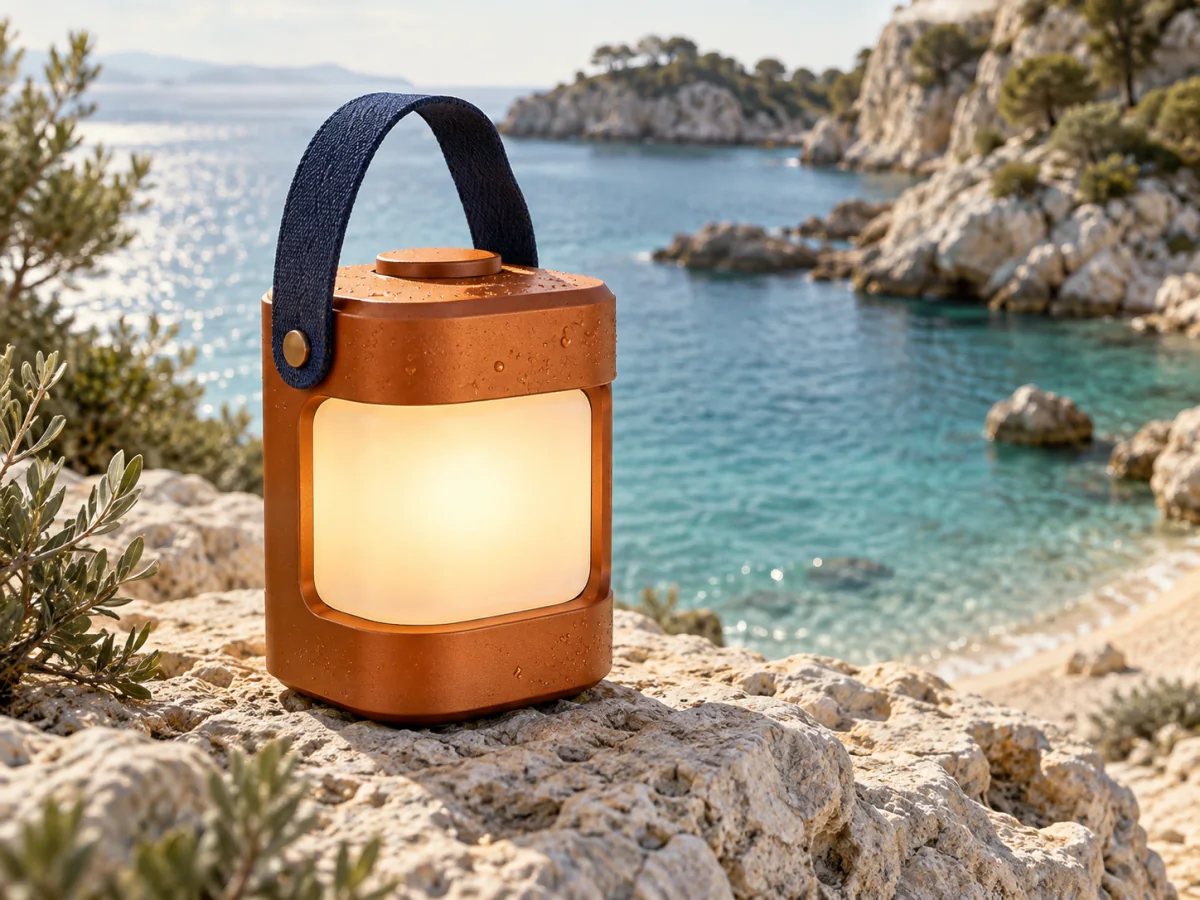
Suppose one image shows a lantern design and another shows a coastal setting. Ask Flux 2 Flex to use the lantern as the main object and the coastline as environmental guidance. Describe the desired scale, placement and lighting in the text. If a third reference contributes a color palette, say so explicitly. Four available slots do not mean every request needs four images: remove references that conflict with the main idea. The result should be judged against the specific relationships in your brief, including whether the product shape remains useful for your intended concept.
Prepare an image for its destination
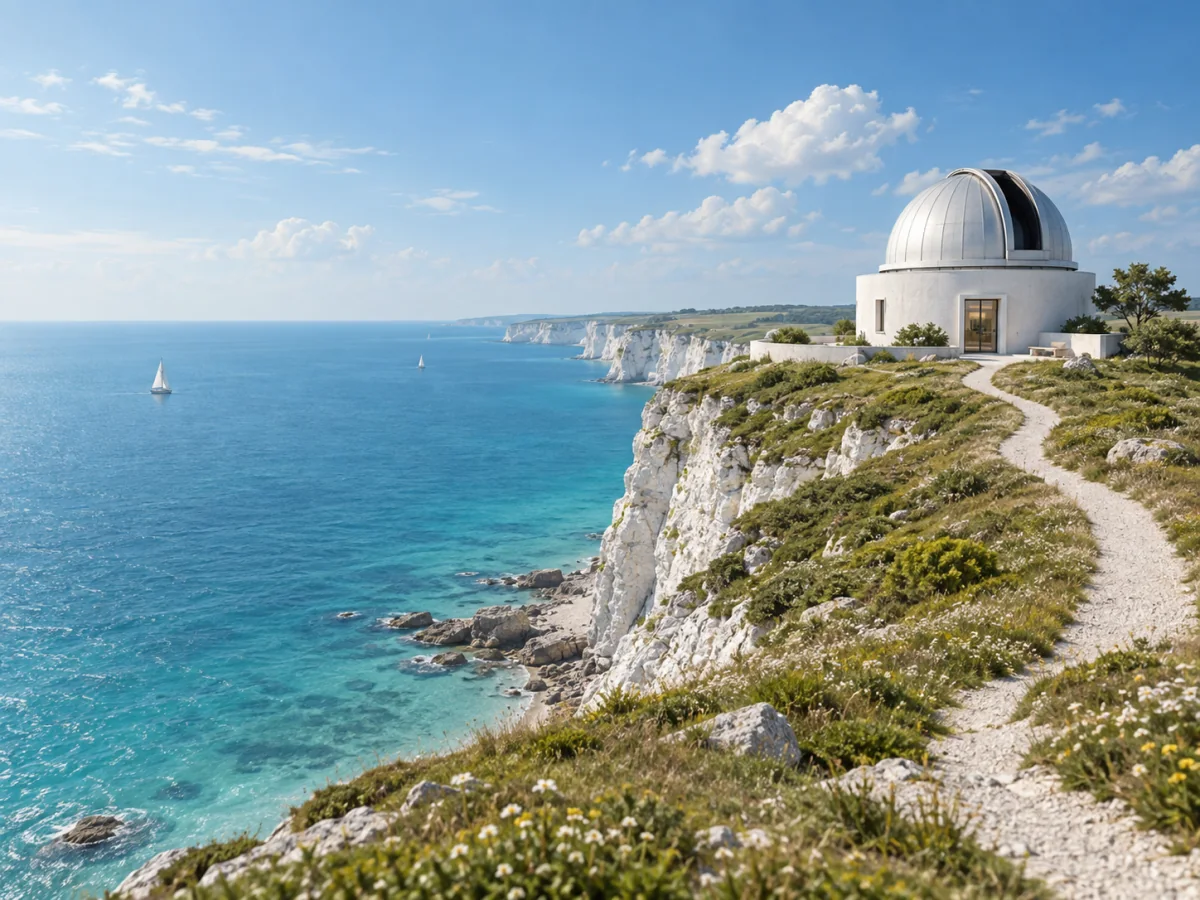
A website banner and a portrait presentation cover need different compositions. Flux 2 Flex lets you choose the aspect ratio before generation, so describe how the subject should sit within that canvas. A wide observatory scene might reserve open sea for a headline; a square crop might bring the building closer and simplify its surroundings. Use the 1K, 2K or 4K setting according to the level of detail you want to evaluate and the displayed cost. A higher setting does not automatically correct a weak brief or an unsuitable layout.
Develop a reference through focused changes
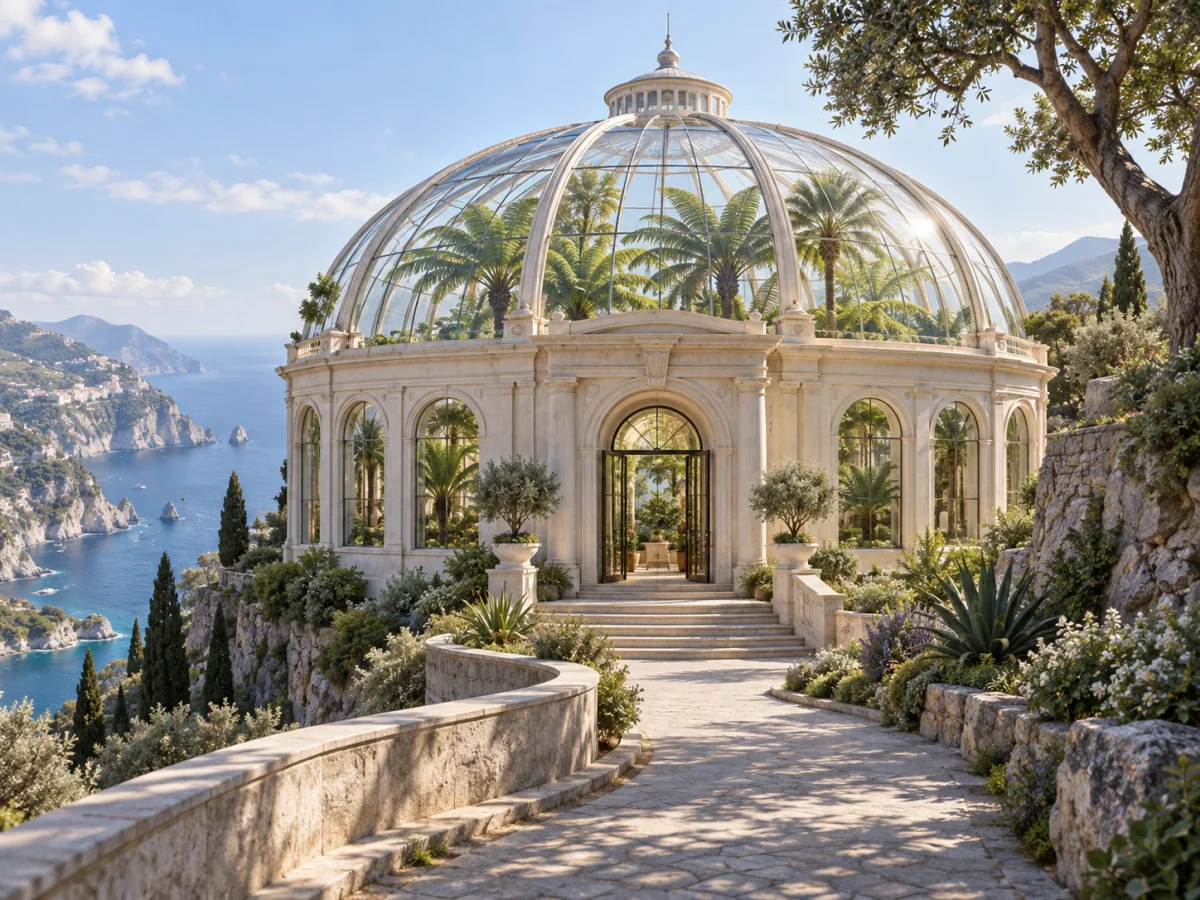
For an architectural concept, a reference can establish the circular building and coastal viewpoint while the prompt asks for a glass roof and planted interior. Flux 2 Flex gives this revision a visible starting point. Explain which elements matter most, such as the building silhouette, entrance position or relationship to the sea. Avoid asking for several incompatible structures in the same request. After generation, compare the revised concept with the reference, checking the choices you meant to keep as well as the changes you requested. Download the useful version before planning another variation.
How to use Flux 2 Flex
Prepare a clear brief, choose the supported settings and review your image result on Jev AI.
Describe the intended result
Write what the finished picture should communicate. Name the main object or scene, then describe composition, lighting and material. If you use references, explain their roles in the same brief. Flux 2 Flex accepts up to 3,000 prompt characters, but a precise short description can be a better starting point than a long list of adjectives.
Select useful references
Add up to four PNG, JPEG or WebP images, or leave the reference list empty for text-to-image generation. Check the selection before submitting. Each image can be up to 10 MiB, and the combined selected files must fit the 14,000,000-byte total limit; four individually valid files can still exceed that total.
Set the canvas and resolution
Choose an aspect ratio and one of the 1K, 2K or 4K resolution values. The defaults are 1:1 and 1K. Review the credit estimate on Jev AI after changing settings, then sign in and submit when the inputs match your brief. One request creates one image.
Evaluate the important details
Wait for the request to finish and inspect the available result. Check the subject, reference relationships, geometry and any visible words. Keep the download that best serves the task. If you need another attempt, adjust a specific instruction or reference rather than changing the entire brief without a clear reason.
Flux 2 Flex questions and answers
Practical answers about Flux 2 Flex inputs, creative choices and the controls available in this Jev AI workspace.