 Jev AI
Grok Imagine Video 1.5 Lite on Jev AI
Grok Imagine Video 1.5 Lite for text-to-video and image animation
Describe one moving scene or bring a still image to Grok Imagine Video 1.5 Lite on Jev AI. Choose a video length from 1 to 15 seconds and a supported resolution, then review the clip in your history. The workspace gives you a direct route from a visual idea to a short video you can evaluate and refine.
What is Grok Imagine Video 1.5 Lite on Jev AI?
Grok Imagine Video 1.5 Lite is a video generation model with text and optional image input. Jev AI offers 480p, 720p and 1080p resolutions and whole-second durations from 1 to 15 seconds. Each request returns one MP4 video. A reference image is optional and sets the video aspect ratio when used.
A video brief needs a change over time. Say what the subject does, what the camera does and how the scene should finish. For a mountain train shot, describe the train crossing the bridge while the camera stays wide; for a product clip, describe a slow move toward the object. A clear action is easier to evaluate than a request that only names a visual style.
Choose between two starting points. Text-to-video lets the prompt establish the scene and uses the selected aspect ratio. Image-to-video starts with one reference picture and follows its aspect ratio. That distinction matters when you need a portrait or landscape result: prepare the source image in the intended shape instead of expecting the text-to-video ratio setting to override it.
Grok Imagine Video 1.5 Lite suits short concept clips, image animation and motion studies where one shot can communicate the idea. Build a brief that fits the selected duration. A small camera move or a single visible action is a more practical first experiment than a sequence of unrelated events that must all happen inside a few seconds.
| Parameter | Specification |
|---|---|
| Input | Required text prompt; optional reference images |
| Prompt length | 1–4,096 characters |
| Reference images | 0–1 images; PNG, JPEG or WebP; up to 10 MiB per image |
| Resolution | 480p, 720p, 1080p; default 480p |
| Aspect ratio | 16:9, 4:3, 3:2, 1:1, 2:3, 3:4, 9:16; default 16:9; text-to-video only, image-to-video follows the reference ratio |
| Video length | 1–15 seconds, whole-second steps; default 5 seconds |
| Output | 1 MP4 video per request |
Plan a short scene with Grok Imagine Video 1.5 Lite
Use subject motion, camera direction and the starting image to make a clip purposeful. The illustrations below are scene-planning concepts, not generated-video performance examples.
Turn a written setting into one moving shot
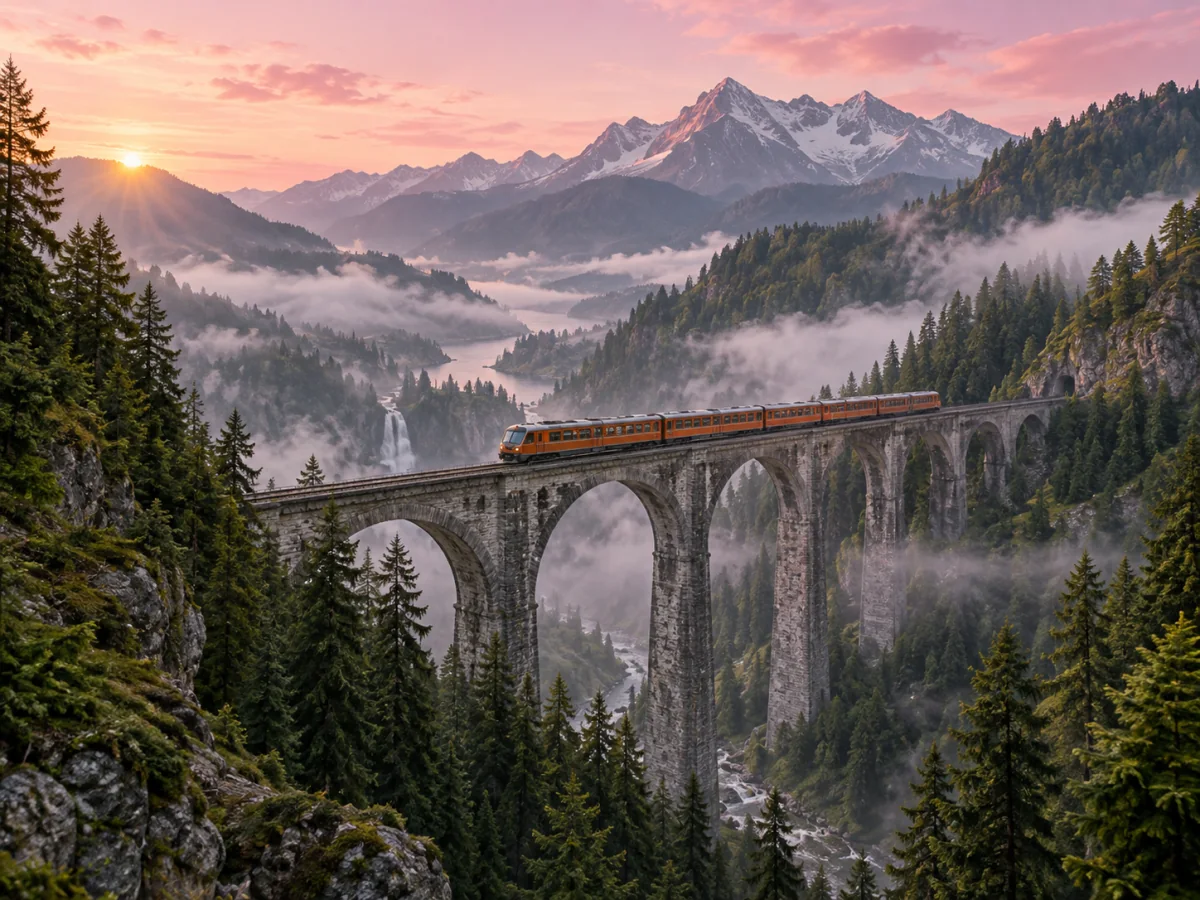
For text-to-video, explain what changes while the shot plays. A prompt for Grok Imagine Video 1.5 Lite could describe an orange train crossing a stone viaduct above a misty valley, with the camera holding a wide view and morning fog moving slowly through the trees. This identifies the subject action, framing and secondary movement. Choose a duration that gives the action enough time to read. When reviewing the result, check that the train remains coherent and the camera follows the intended direction before adding more complicated movement to another attempt.
Animate a still image with a specific motion brief
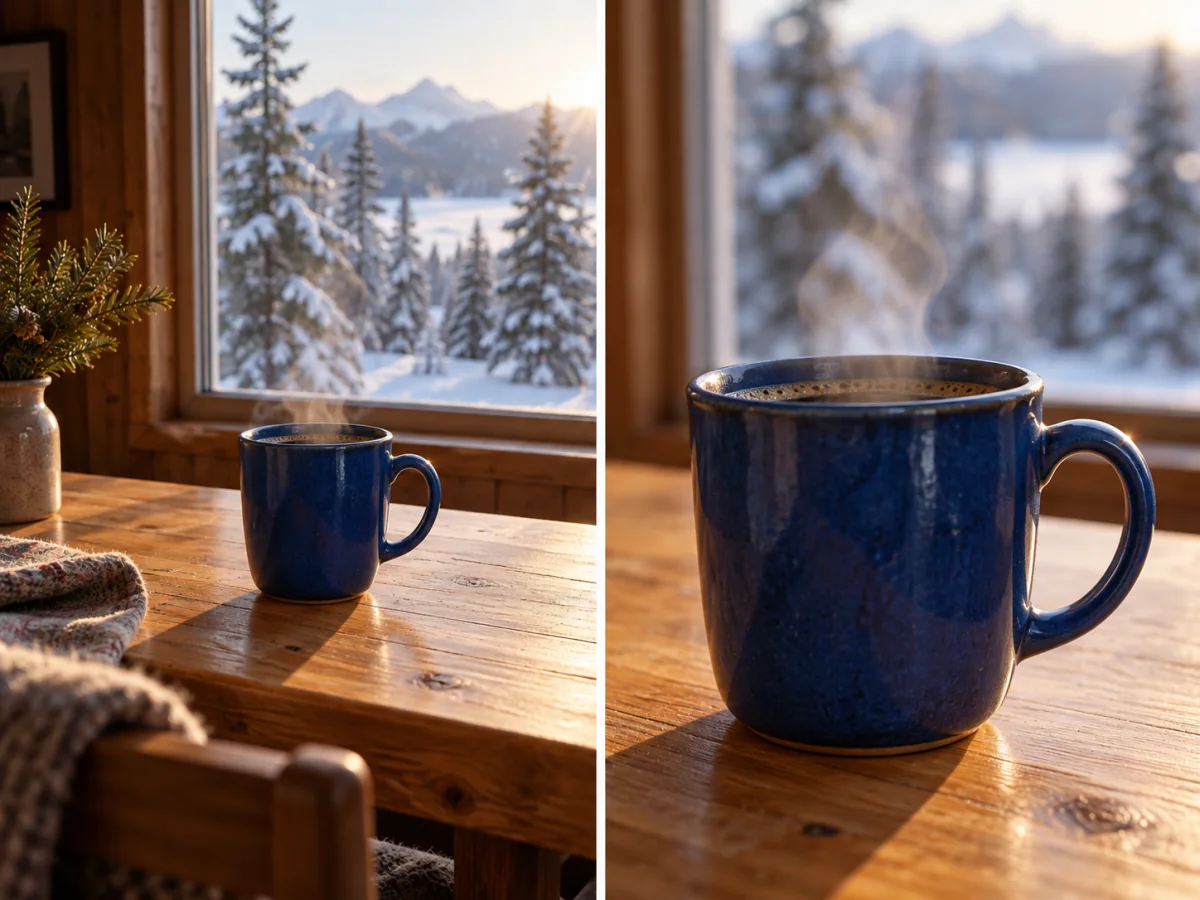
A reference image already communicates the cup, table, light and framing. Use the prompt to explain the motion you want: a blue cup remains on the table while steam rises and the camera moves gently closer. Grok Imagine Video 1.5 Lite accepts one reference, so use the panel that best establishes your starting composition; a two-view illustration is a planning aid, not a second frame input. Check the source image ratio before uploading because the generated video follows it. Review object shape, background stability and the size of the camera move in the finished clip.
Give an illustration one readable action
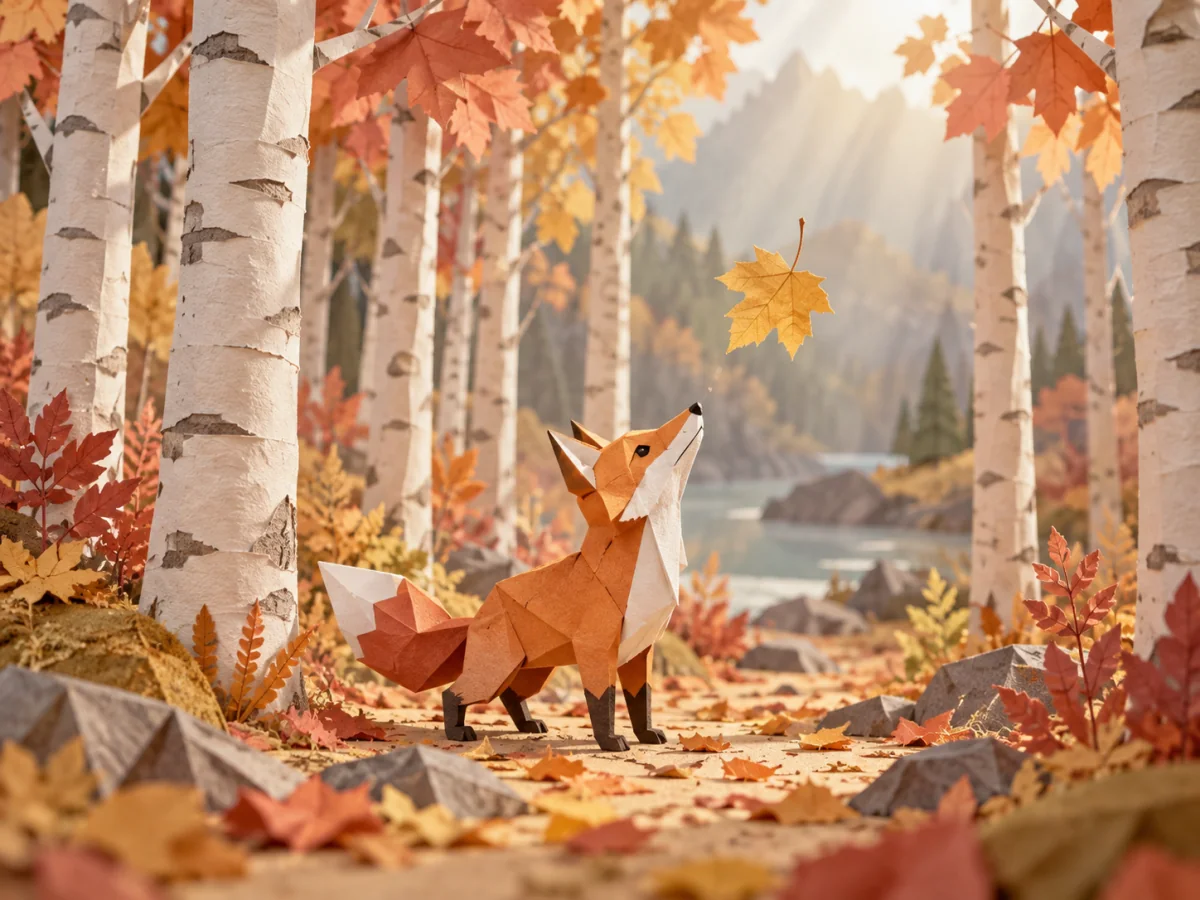
For an illustrated scene, choose an action that fits the artwork and the available time. An orange paper fox might lift its head toward a falling leaf while the surrounding paper trees stay mostly still. Tell Grok Imagine Video 1.5 Lite which materials and visual traits matter, then describe the subject movement in plain language. The goal is a short motion concept that remains easy to read. Review the character outline, scene continuity and unexpected changes before deciding whether a second attempt should adjust motion, timing or composition.
How to use Grok Imagine Video 1.5 Lite
Prepare a clear brief, choose the supported settings and review your video result on Jev AI.
Describe the movement
Write the subject, action, setting and camera direction. Include the intended ending if it helps define the shot. The prompt limit is 4,096 characters. For a first attempt, choose one main action and one camera instruction so you can judge whether the result matches the brief.
Choose text or a reference image
Leave the reference empty for text-to-video, or add one PNG, JPEG or WebP image up to 10 MiB for image-to-video. Check that the important subject is clearly visible. For a specific image-to-video format, prepare the reference in the desired ratio before attaching it.
Set length, resolution and credits
Select a whole-second duration from 1 to 15 and choose 480p, 720p or 1080p. For text-to-video, choose an aspect ratio as well. The defaults are 5 seconds, 480p and 16:9. Review the Jev AI credit estimate after changing these settings, sign in and submit the request.
Watch the complete result
Wait for processing to finish and play the available clip from start to end. Check subject motion, camera direction, object continuity and the ending. Download the MP4 you want to keep. A new attempt should address a specific issue in the motion brief and uses the estimate shown for that request.
Grok Imagine Video 1.5 Lite questions and answers
Practical answers about Grok Imagine Video 1.5 Lite inputs, creative choices and the controls available in this Jev AI workspace.