 Jev AI
Photo to Coloring Page
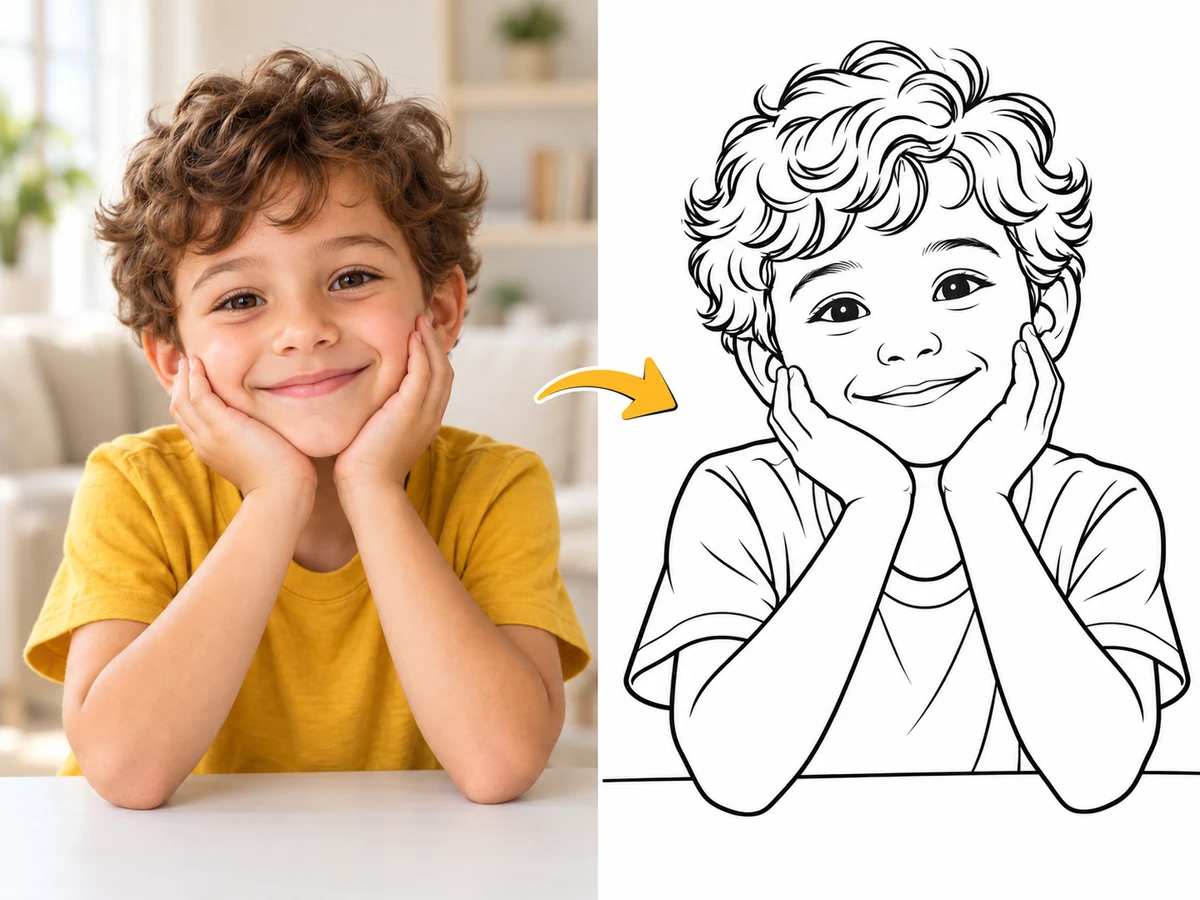
Photo to Coloring Page on Jev AI
Photo to Coloring Page for personal black-and-white printables
Turn a familiar photo into an activity you can color. Photo to Coloring Page on Jev AI creates a new black-and-white illustration from one reference image, using a prepared direction for bold outlines, simpler backgrounds and open spaces. Start with a portrait, a pet or a favorite object, choose the image shape and review the result before printing.
What is Photo to Coloring Page?
Photo to Coloring Page is an image tool that reinterprets a photo as simple black-and-white line art. Its prepared instructions ask for bold outlines, minimal shading and a recognizable main subject, with background clutter reduced. Jev AI returns one PNG image per request, ready for you to inspect and arrange in your preferred print layout.
A useful coloring page needs shapes that are easy to follow. The main object should stand apart from its background, and the spaces inside the outlines should suit the person who will color them. Begin with a straightforward source when you want a simpler activity. An image filled with small objects, busy fabrics or overlapping people gives the conversion more information to simplify.
Choose the photo around the activity you have in mind. A familiar pet can make a personal art exercise; a portrait can become part of a celebration; a household object can anchor a themed worksheet. Photo to Coloring Page handles the visual conversion, while you decide how to present the downloaded image. Add instructions, a title or other page elements in your usual document or design application.
The tool requires one image and offers an aspect ratio selector, with 1:1 selected by default. No prompt is needed. The preparation work happens in your choice of source and crop: keep the main subject visible, remove distractions where practical and leave enough room around important outlines. Review the generated page at the size you intend to print rather than judging it only as a small thumbnail.
| Parameter | Specification |
|---|---|
| Source image | One required image; PNG, JPEG or WebP; up to 10 MiB |
| Text input | No prompt required |
| Available control | Aspect ratio; default 1:1 |
| Result | One PNG image per request |
| Creative direction | Black outlines, white space, minimal shading and reduced background clutter |
Make a coloring activity from a picture that matters
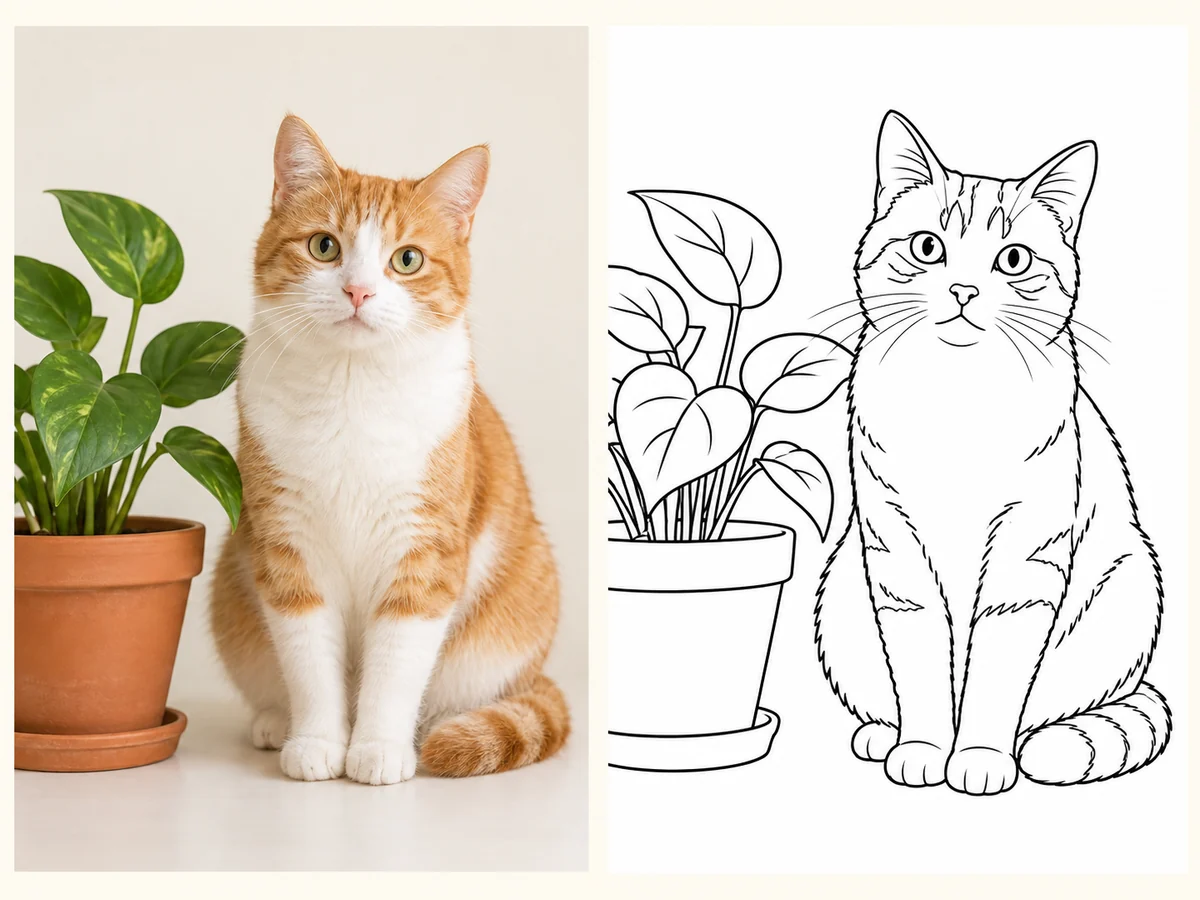
Think about recognizable shapes, useful white space and the final printed size. These original Jev AI concept illustrations show the intended transformation; actual results depend on your source image.
Turn a portrait into a personal activity
A portrait gives Photo to Coloring Page a subject the recipient already knows. The important information may be a smile, a hairstyle, glasses or the position of the hands. Select a source where those details are visible and separate from the background. After generation, inspect the face and hands before printing, then check whether the outline regions are comfortable to color. For a younger participant, an uncluttered portrait may be easier to use than a group photograph with many small faces. The illustration here shows the visual goal: readable contours and white areas that invite the person coloring to make their own choices.
Create a themed set one source at a time
A cat beside a plant offers a simple theme with distinct shapes: ears, paws, a pot and broad leaves. Photo to Coloring Page can help you explore a set of related image activities using separate source pictures. Keep a consistent aspect ratio and inspect the level of detail across the results before arranging them together. The tool generates one image at a time; assembling a booklet or worksheet happens after download. You might add a space for a name, a short activity instruction or a date in your layout application. This keeps the image conversion focused while letting you design the final activity for its audience.
How to use Photo to Coloring Page
Start with a suitable source, choose the available settings and inspect the result before using it.
Pick a readable subject
Choose a well-lit image with a clear face, animal or object. Crop closer if the background contains details you do not need. Keep important edges inside the frame and avoid cutting through the main subject. Save one PNG, JPEG or WebP file up to 10 MiB for upload.
Upload and set the shape
Add your reference to Photo to Coloring Page and choose the ratio that suits the artwork. The default is square. A portrait ratio can suit a taller subject, but it does not automatically set an A4 or Letter paper size. No text prompt is required for this conversion.
Generate the line-art image
Sign in to Jev AI and review the current credit estimate. Submit once the selected image and ratio are correct. The prepared instructions guide the conversion toward black outlines and white coloring space. Follow the request status in this tool’s history until a result is available.
Check the page before printing
Inspect the outlines, face details and open areas at a useful viewing size. Download the PNG, place it in your preferred print layout and leave suitable margins. Use print preview to check scale and cropping. For a set of pages, test one printed sheet before preparing the rest.
Photo to Coloring Page questions and answers
Practical answers about preparing your source, using Photo to Coloring Page and reviewing results on Jev AI.