 Jev AI
3D AI Video Generator on Jev AI
3D AI Video Generator for expressive animated scene concepts
Give a short scene a stylized 3D animation look. The 3D AI Video Generator on Jev AI combines your scene description with a prepared direction for animated characters, soft lighting and a gentle rising camera move. Write what should happen, add a reference image if useful, and create a short clip to watch, compare and refine.
What does the 3D AI Video Generator do?
The 3D AI Video Generator is a video effect for creating short clips with a stylized 3D animation aesthetic. A written scene description is required, and one reference image is optional. Jev AI supports durations from 1 to 15 seconds and 480p, 720p or 1080p resolution. Each request returns one MP4 video.
The style is prepared; the story comes from you. Describe the main character, setting and action in ordinary language. A small harbor robot noticing a departing boat, for example, gives the scene a subject and an event. Add details that explain the intended mood and movement without loading a short clip with unrelated actions. A focused moment is easier to evaluate and develop than an entire story compressed into a few seconds.
You can begin from text alone or use an image to communicate appearance and composition. A reference is helpful when the character or environment is already designed. Choose a picture with a clear focal point, then use the text to describe movement. In image-to-video mode the clip follows the reference image aspect ratio, so prepare a portrait or landscape source that suits the intended destination.
Use the 3D AI Video Generator to explore character introductions, illustrated story moments or a visual concept for a presentation. The output is a rendered video, suitable for review and later editing in your own workflow. It does not include editable geometry, a character rig or a scene file. Watch the whole clip before choosing a direction, paying attention to expressions, object continuity and the way the camera reveals the setting.
| Parameter | Specification |
|---|---|
| Scene description | Required |
| Reference image | Optional; one PNG, JPEG or WebP image up to 10 MiB |
| Duration | 1–15 seconds in whole-second steps; default 5 seconds |
| Resolution | 480p, 720p or 1080p; default 480p |
| Aspect ratio | Text-to-video: seven choices, default 16:9; image-to-video follows the reference ratio |
| Result | One MP4 video per request |
Give a short animated scene a readable story beat
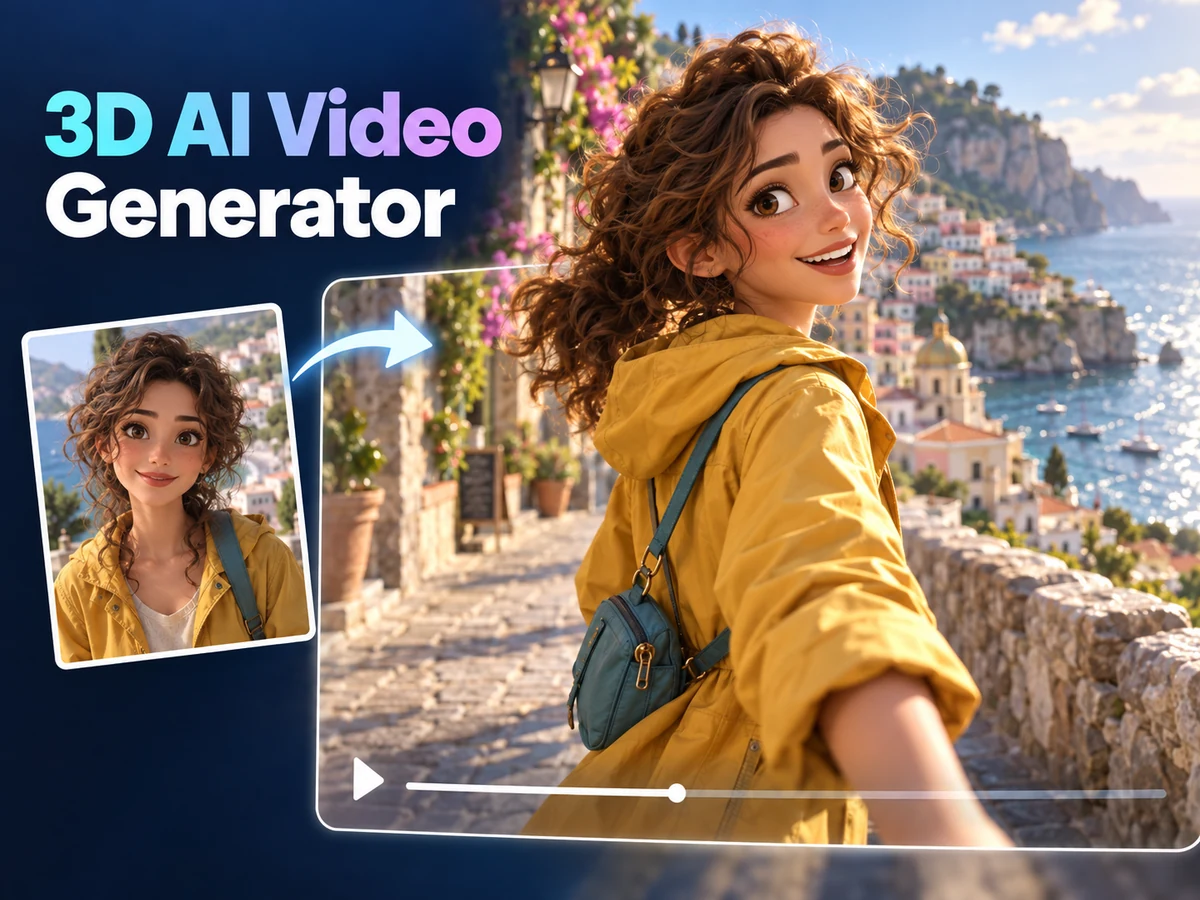
Plan the character, motion and reveal together. The following Jev AI artwork illustrates scene ideas and visual style; it is not footage from a tested generation.
Create a character introduction from a clear visual idea
A traveler in a yellow jacket looking back along a seaside path provides a simple starting point for a character introduction. Tell the 3D AI Video Generator what the character notices and how the expression or pose changes. If you use a reference, make sure the face and key costume details are readable. Let one small action carry the moment instead of asking the character to perform several gestures at once. The prepared animation direction includes soft lighting and a rising camera feel, so choose a scene where revealing more of the surroundings serves the idea. Review the finished clip for facial continuity and changes to clothing or proportions.
Build a small story around an environment
A teal delivery robot beside a sailboat creates a scene with a clear relationship between subject and setting. A useful description might ask the robot to lift one hand as the boat drifts away, with warm light falling across the stone quay. The 3D AI Video Generator supplies the prepared style while your words define the event. Pick a duration that lets the action read, and keep secondary movement restrained. When reviewing, watch how the robot, boat and camera move relative to one another. If the scene feels crowded, simplify the action for the next attempt rather than adding more visual instructions.

How to use 3D AI Video Generator
Prepare your creative idea, check the available inputs and review the finished result.
Describe one scene and its action
Write who or what appears, where the scene takes place and what changes during the shot. Give the action a clear beginning and ending when useful. The 3D AI Video Generator requires this description even if you add a reference. Concentrate on the event; the animation style is already prepared.
Add an optional visual reference
Upload one PNG, JPEG or WebP image up to 10 MiB when you want to guide character appearance or scene composition. Keep it empty to create from text alone. For an image-guided clip, choose a reference with the output shape you need, because its ratio determines the video shape.
Choose the length and resolution
Set a whole-second duration from 1 to 15 and select 480p, 720p or 1080p. Defaults are 5 seconds and 480p. Text-to-video also offers aspect ratio choices. Review the updated credit estimate on Jev AI, sign in and submit when the settings fit your scene.
Watch and refine the scene
Follow processing in the effect history, then play the available result from start to finish. Check expressions, anatomy, camera motion and the ending before downloading the MP4. For another attempt, adjust a specific part of the scene description or reference so you can judge what improved.
3D AI Video Generator questions and answers
Practical answers about preparing your source, using 3D AI Video Generator and reviewing results on Jev AI.